
A Host restart is a lifecycle action, not an ordinary troubleshooting click. Restart an exact task-owned nonproduction test or verification Host directly when it belongs to your assigned task; keep production, shared, and out-of-scope Hosts behind their operator boundary. Then compare visible before-and-after state instead of assuming every task resumed.
1. Confirm the restart authority and exact target
Before opening the restart control, classify the exact Host. An assigned, task-owned, nonproduction test or verification Host can be restarted directly as ordinary task execution. Production, shared, ambiguous, or another task's Host is outside that authority.
- Record the exact task, Host or stack name, nonproduction origin, lifecycle command, external control-plane placement, and cleanup target.
- Prove mechanically that the effective command cannot reach production or another stack before selecting Restart Host.
- Never use production port
8802or a shared Host as this tutorial's restart target. A genuine production lifecycle action stays with the production operator or its separately authorized exact action. - Do not substitute another Host, connection address, or lifecycle domain merely because it is easier to reach.
2. Record a safe before-state
Start signed in on Sessions, with the ready connection state visible on the exact task-owned test Host.
- List the display names of the Sessions that must return, and count how many times each appears.
- Open each important Session and note its last completed visible message or result. Do not copy private content into public evidence.
- For a Session with Loops, open the chat header’s More Options menu and choose Loop. Record each Loop definition, its enabled or disabled toggle, and its visible Last and Next values.
- Return to Sessions. Wait for active provider replies, terminal commands, Loop turns, or scheduler work to reach a safe stopping point whenever possible.
Checkpoint: you can identify the intended Host, the exact Session set, the last completed work in each important Session, and the pre-restart Loop states without exposing a credential, private URL, local path, or message content.
3. Restart the exact task-owned Host once
Inspect full-size screenshot
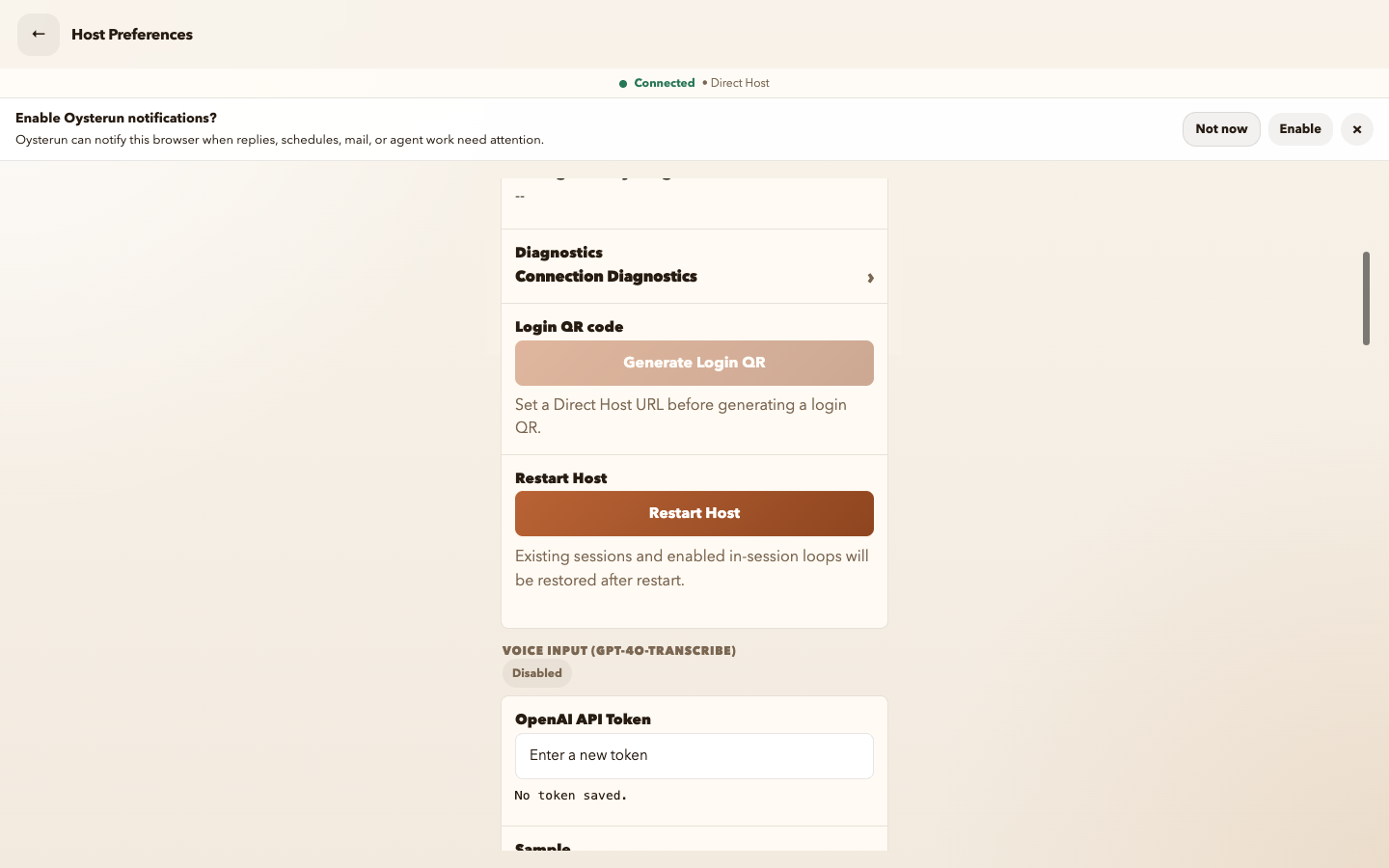
- Open the Oysterun menu and choose Host Preferences.
- Find Restart Host. Read the helper copy, then recheck the task-owned Host identity and nonproduction origin.
- If Host Preferences contains unrelated unsaved changes, do not restart. Resolve the draft first; Oysterun reports Save Host Preferences changes before restarting Host.
- Select Restart Host once.
- Expect Preparing restore state for existing sessions and enabled loops..., followed by Restart scheduled.
- Stay on the handoff. It says Please wait while Oysterun restarts. This usually takes about 30 seconds. and counts down until you are logged out.
Do not select restart again, refresh during the countdown, switch endpoints, or send new Session work while the handoff is active.
4. Wait for the same Host to become ready
Inspect full-size screenshot
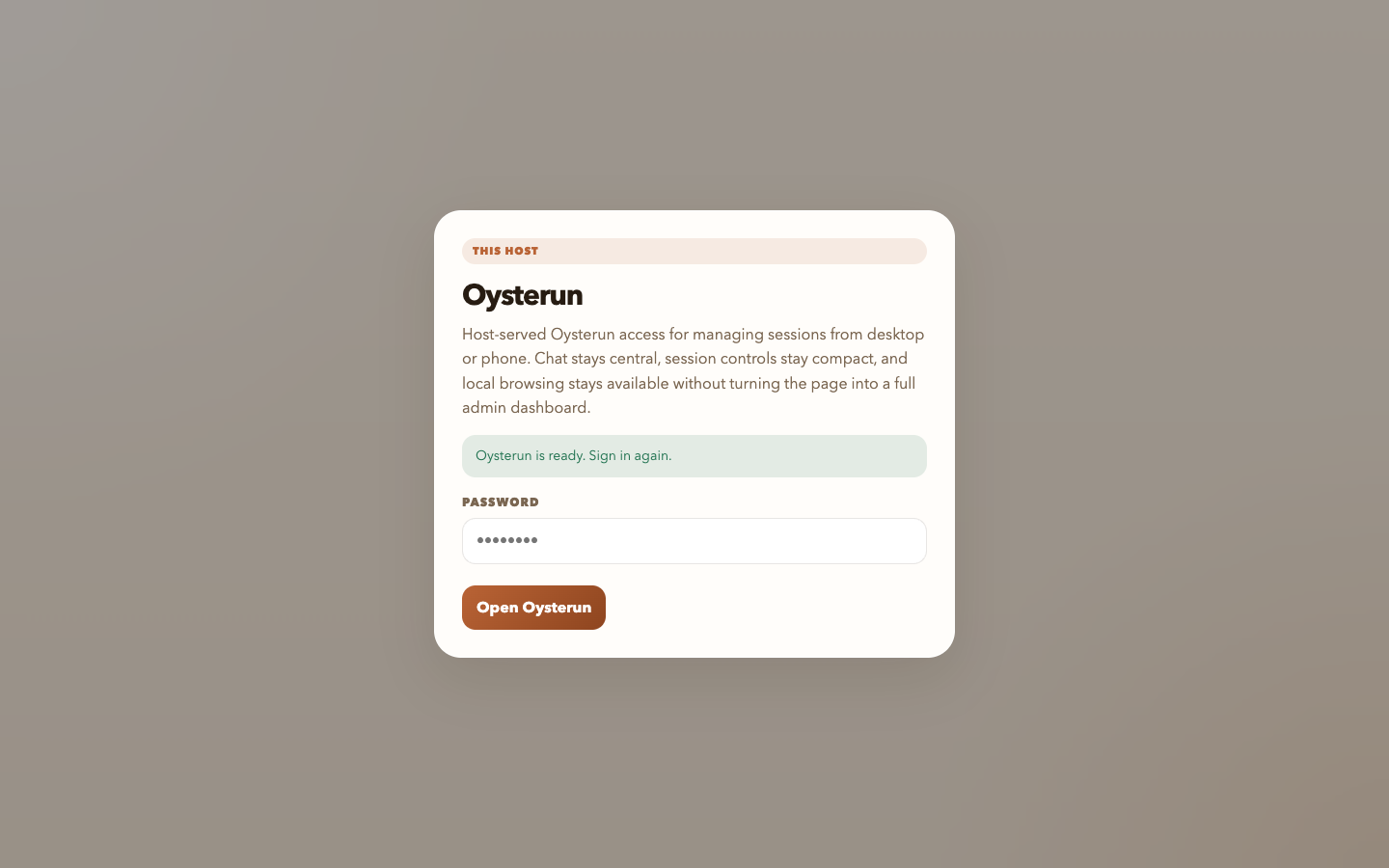
- Keep the restart gate open. During downtime it can show Oysterun is restarting. Sign in will be available when the Host is ready. or Waiting for the Host to become available before signing in.
- Do not repeatedly submit the password or initiate another lifecycle action.
- Continue only when the page says Oysterun is ready. Sign in again.
- Sign in through the normal password-only form and wait for Sessions.
- Confirm that the connection indicator returns to Connected on the same intended origin.
5. Verify Sessions and interrupted work
Inspect full-size screenshot
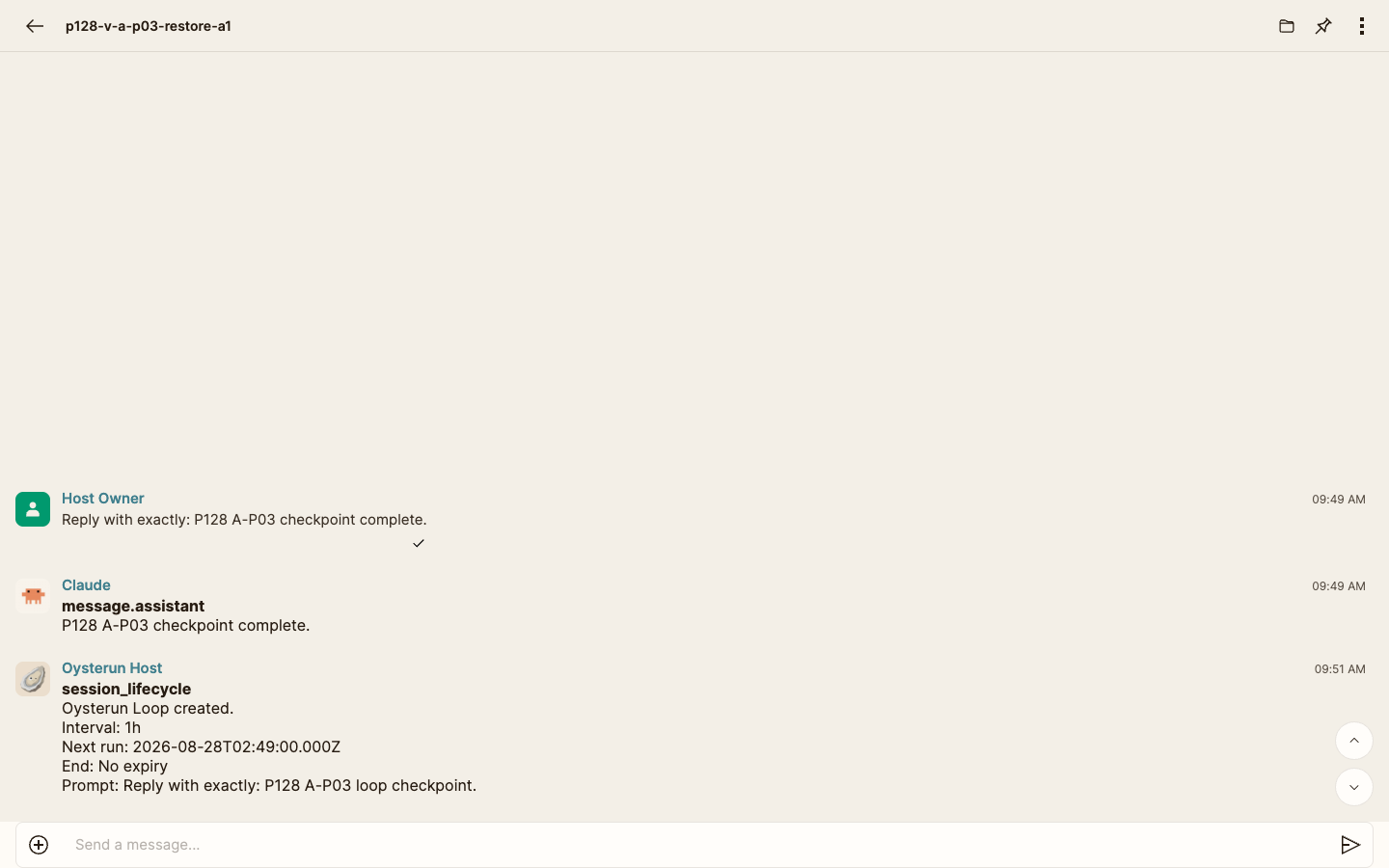
- Compare the Sessions list with your before-state. Each eligible Session that was live or ready should appear once, not zero times or as a duplicate.
- Open each important returned Session only after it is available.
- Confirm that its preserved conversation reaches the same last completed message or result you recorded.
- Confirm that Oysterun did not automatically resend the previous prompt.
- Inspect any provider reply, terminal command, Loop turn, scheduler run, or shell work that was active at shutdown. Restart can mark such work interrupted; it does not replay it.
A returned Session is a freshly resumed provider runtime backed by its existing conversation, not an assumption that in-progress work finished while the Host was down.
6. Verify every Loop before enabling it
Inspect full-size screenshot
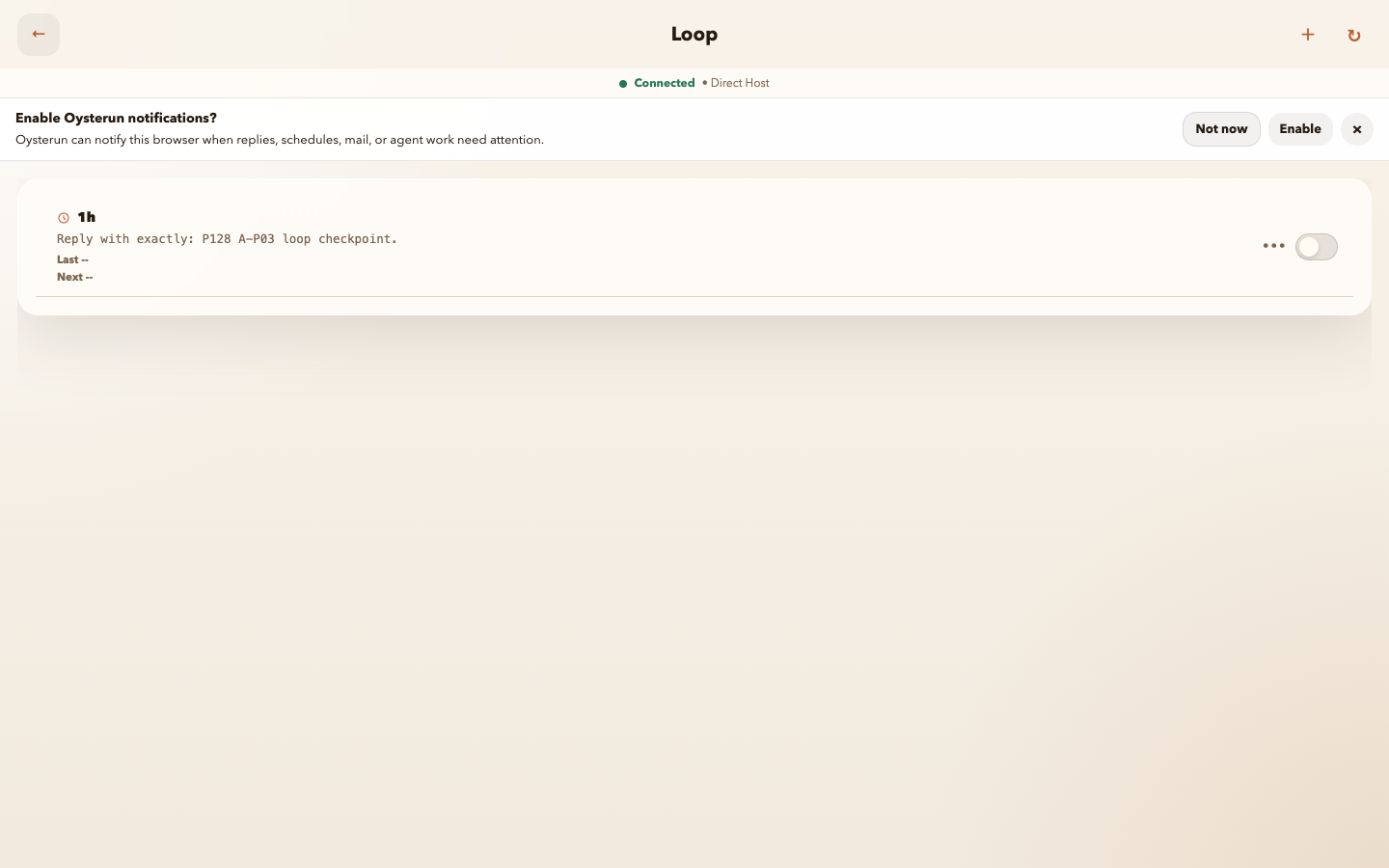
- From the restored Session chat, open More Options and choose Loop.
- Confirm that the expected Loop definitions are still listed.
- Confirm that every toggle is Disabled. Any pending occurrence and old Next time are cleared across the restart boundary.
- Check the last visible result before deciding whether missed work still needs to run.
- Enable a Loop explicitly only if you still want it scheduled. Enabling starts a fresh cadence; Oysterun does not catch up missed occurrences.
Recover safely and know when to stop
- Restart Host is missing or disabled: stop. Do not use another lifecycle domain as a workaround; verify that this is the exact task-owned test Host and preserve the visible state for the task operator.
- The ready message does not appear after the usual restart window: do not issue a second restart. Record the visible gate and time, then have the assigned task operator check that exact task-owned Host. Escalate instead if ownership or lifecycle scope is ambiguous.
- A Session is missing or duplicated: choose Refresh Page once and compare again. If it remains wrong, do not create a replacement or send work to the duplicate. Preserve the visible state and have the assigned task operator recover the Session on that exact task-owned Host.
- History exists but the Session is not live: use Resume Chat only if that visible action is offered and resuming is your intended recovery. Otherwise stop; do not invent a provider resume command.
- A Loop definition is missing: use Refresh loops once. If it remains missing, do not recreate it until the assigned task operator checks the original definition on that exact task-owned Host.
- A Loop is unexpectedly enabled: disable it, do not wait for it to run, and report the visible state. Current lifecycle behavior is default-off after restart.
- Work was interrupted: inspect its last visible result before deliberately starting it again. Never assume success and never rely on automatic replay.
Safe stop: resume ordinary work only after the exact Host is Connected, expected Sessions are present once, conversation checkpoints match, and every Loop has been reviewed in its disabled post-restart state.