
Use this Docs guide to distinguish five states in one Oysterun Session: available, occupied, showing visible progress, terminal, and unknown. You will open a real Session, send one safe message, and choose the next action without accidentally sending the same work twice.
Before you start
- Your Oysterun Host is connected.
- Codex or Claude Code is installed and signed in on that Host.
- You have at least one Session that you can open. If the Sessions page is empty, choose New Session, select Codex or Claude and a Start Folder, then choose Start Session.
Starting screen: open Oysterun and choose Sessions in the main navigation.
1. Open the Session chat
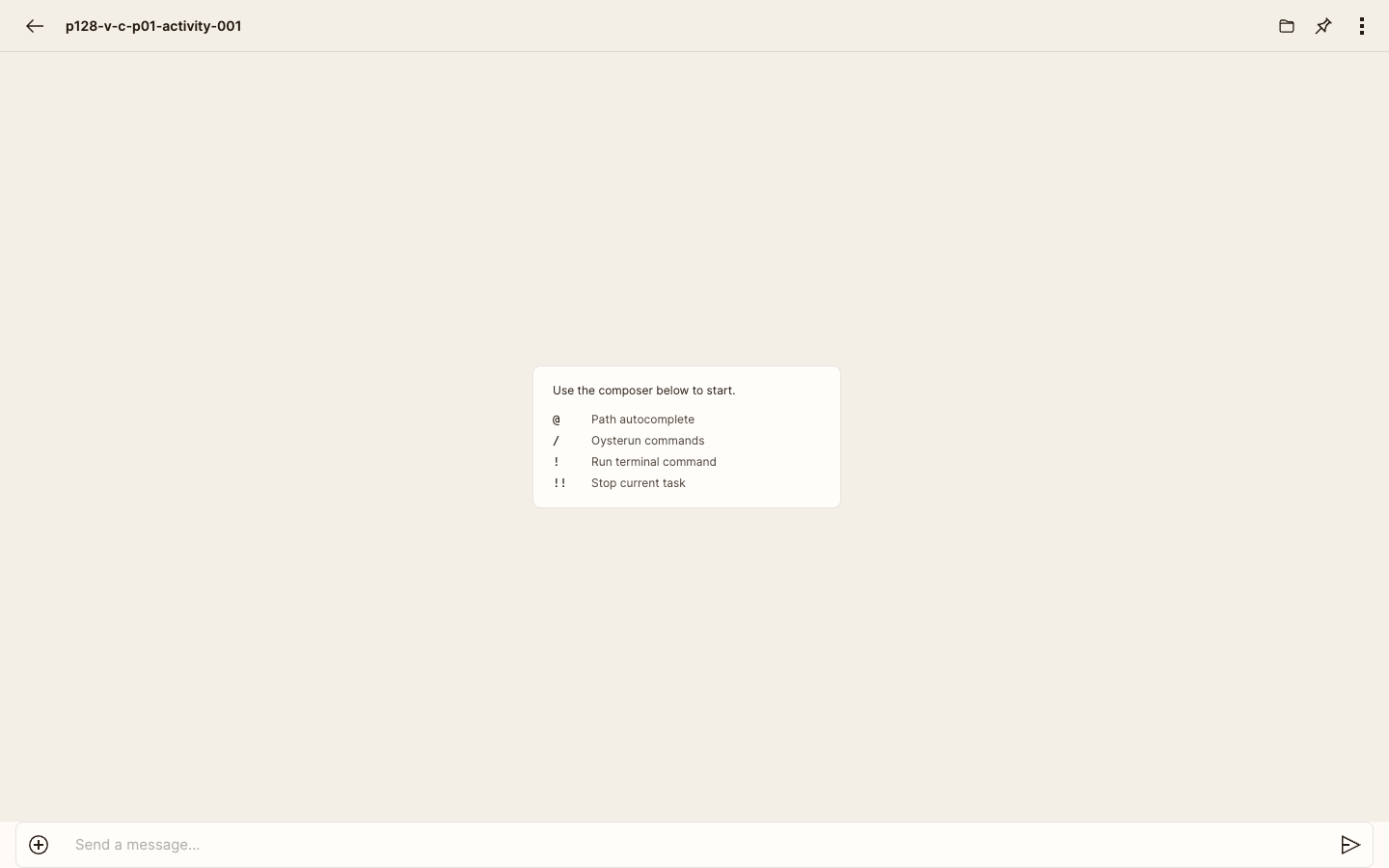
Inspect full-size screenshot
- On the Sessions page, choose the Session you want to check.
- Wait for its chat page to open.
- Confirm that the message composer is visible at the bottom of the page.
2. Send one safe test message
- In the composer, enter:
Without using tools, reading files, or changing anything, write five short bullet points about the kinds of software-project questions you can answer.
- Send the message once.
- Keep the same chat open while Oysterun accepts the message.
3. Recognize an occupied turn
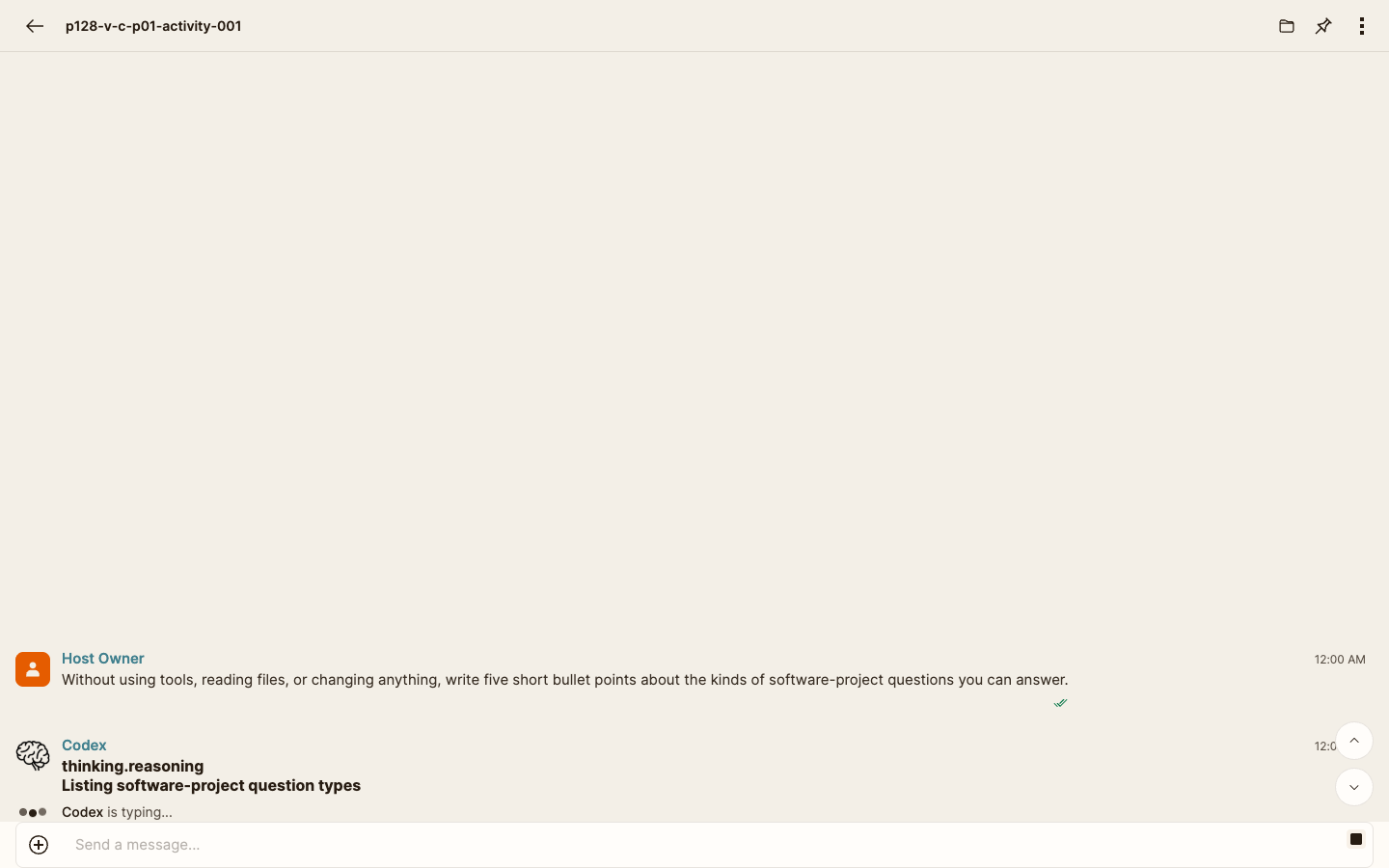
Inspect full-size screenshot
After Oysterun accepts the message, the current provider may appear below the conversation as Codex is typing…, Claude is typing…, or another provider-specific responding indicator. Read this as Oysterun's current-provider state, not as a generic chat participant's typing notice.
- Indicator visible: the turn is occupied. It may be accepted, queued, starting, running a tool, awaiting control, or suspected stalled; the indicator alone does not distinguish those conditions. Do not send the same request again.
- New assistant text or a current Tool result for this request appears while the turn remains occupied: the turn has produced visible progress. Continue following the original request.
- Stop response is available: Oysterun currently offers a way to request interruption. Whether interruption is still accepted is separate from whether the turn is occupied or showing progress.
4. Handle a suspicious repeated start
A reconnect can make the same turn appear to start again. A repeated responding indicator or a page reconnect is not a reason to send the message again.
- Confirm that your original message is still visible in the chat.
- Do not resend it and do not open a second Session for the same request.
- Wait for one complete answer, explicit error, or stopped result.
- If the same request appears to produce two answers, or the visible state keeps returning to responding without a final result, open the original message's … menu and choose Copy Debug Info.
- Send that information privately to the person who manages this Host. Do not post it publicly.
5. Confirm that the turn finished
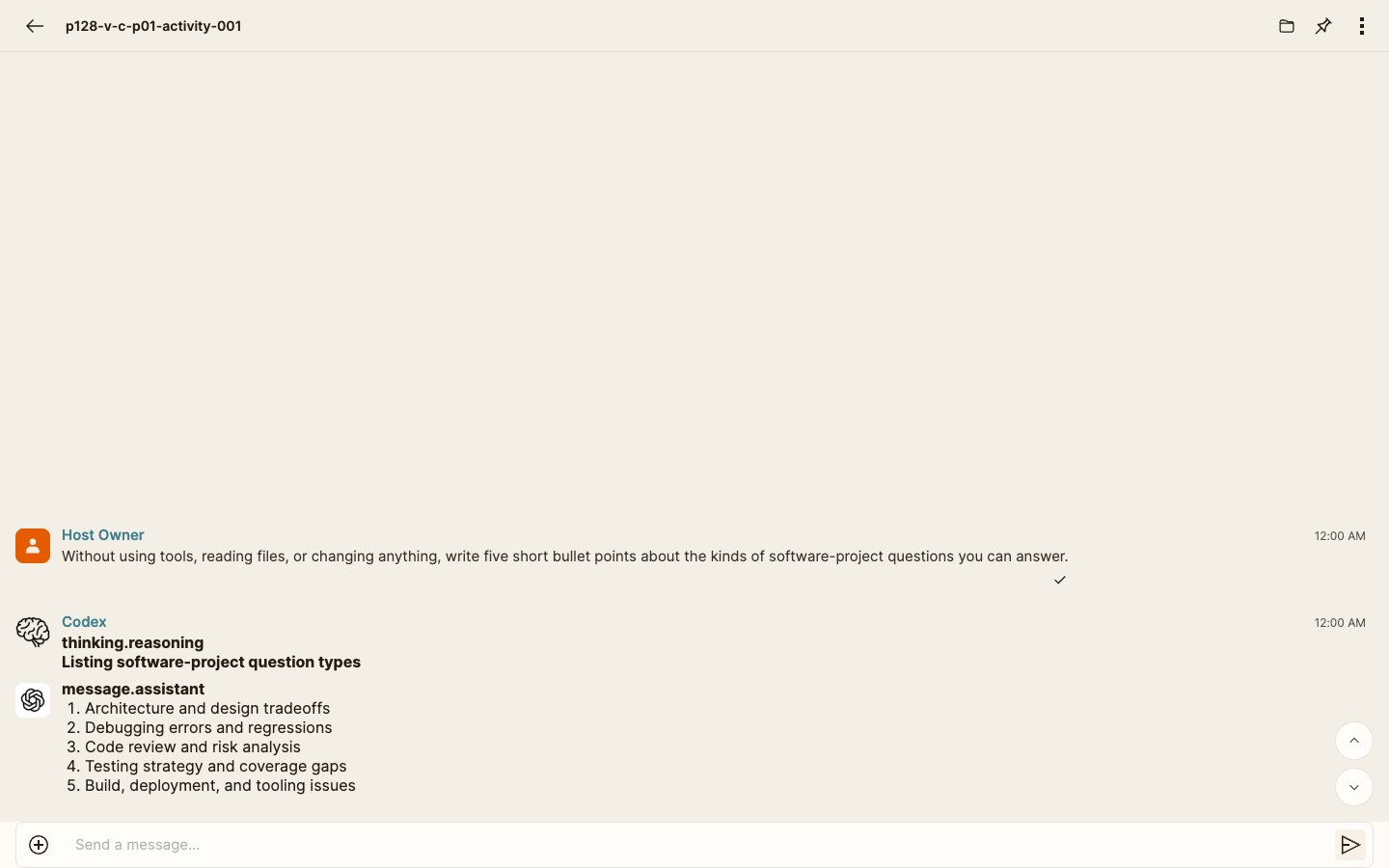
Inspect full-size screenshot
- Wait for a complete assistant answer, an explicit error, or a visible stopped/canceled result.
- Confirm that the responding indicator is no longer visible.
- Read the final result before deciding what to send next.
6. Recover when the state is unclear
If there is no current-provider responding indicator and no clear final result, or if the visible signals conflict, do not guess that the Session is idle.
- Use your browser's Reload control once.
- Read the latest message again.
- If the page still looks incomplete, return to Sessions and reopen the same Session once.
- If a final result appears, follow it. If the state is still unclear, do not repeat the request. Open the latest committed message's … menu, choose Copy Debug Info, and send that information privately to the person who manages this Host. If that command is unavailable, preserve what you can see and contact the Host manager without resending.
Status reference
| What you see | What it proves | What to do |
|---|---|---|
| The Session opens and its composer is visible | Available: the chat can be inspected or used; provider activity and idleness are not proved | Read the latest result before sending |
| Oysterun's current-provider responding indicator is visible | Occupied: the current turn is not idle; continuous or useful progress is not proved | Do not repeat the request; wait, or use Stop response only if you intend to interrupt |
| New assistant text or a current Tool result for the same request appears while the turn remains occupied | Visible progress: this turn has produced a new result since it started | Continue following the original request unless you intend to stop it |
| A blue dot and stronger Session row are visible; the browser-tab icon may have a red dot | Unread completion: that Session has a successful completed answer you have not yet opened; the green runtime dot remains a separate signal | Open the Session and wait until its newest completed answer is visible; other unread Sessions stay unread |
| A complete answer, explicit error, or stopped/canceled result is visible and the provider indicator has cleared | Terminal: the turn ended, normally or otherwise | Review the result; send the next instruction after a normal answer, or correct the stated cause before one appropriate retry |
| No provider indicator and no clear final result, or the visible signals conflict | Unknown: neither idle nor active work is proved | Reload once, reopen once, then preserve debug info instead of resending |