
Use this guide when you want a Claude or Codex Session to perform an Oysterun product task through an installed Skill. You will find the current Skill state, install or update the eligible Oysterun set, verify it from visible UI, and use one Skill for a read-only task.
Before you start
- You are signed in to Oysterun and have a live Session open.
- The Session uses Claude or Codex. Those are the supported provider Skill folders.
- An ordinary new eligible Session currently starts with the Oysterun-managed Skill set already provisioned. The visible menu state—not the Session's age—decides whether installation is needed.
- The Session is using the folder where you want this Oysterun Skill set to be available.
- No private credentials, local paths, or unrelated Session content will be included in screenshots or shared evidence.
Starting screen: the Chat view for the exact live Session you want the Skill to help. The message composer must be visible.
1. Find the current Skill state
Inspect full-size screenshot
- Click the message composer.
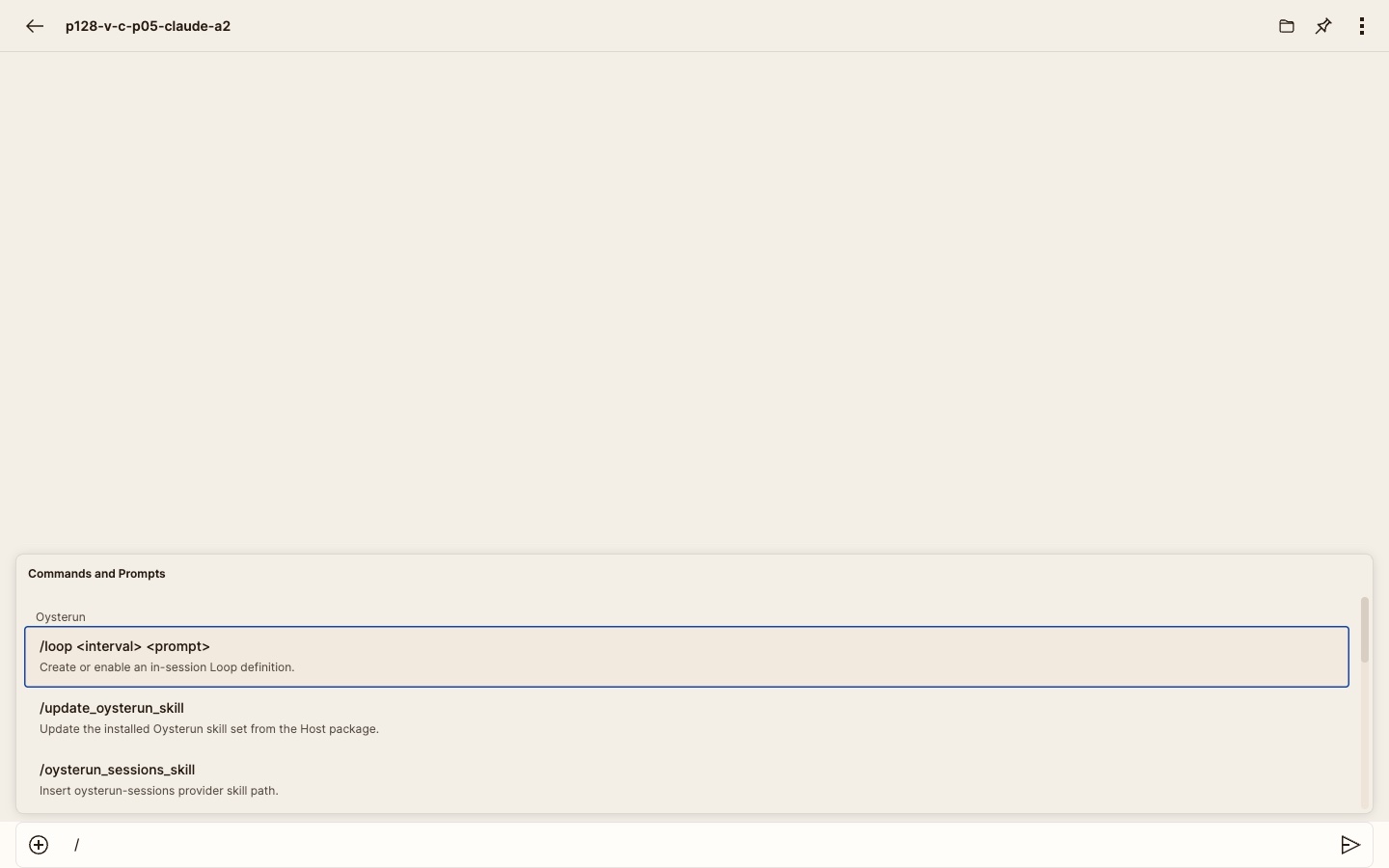
- Type / and wait for Commands and Prompts.
- Read the entries under Oysterun. Do not select an install or update entry until you intend to perform it.
Expected ordinary state: a new eligible Claude or Codex Session normally shows /update_oysterun_skill and the product-Skill helpers because the managed set was auto-provisioned. Do not assume a newly created Session must be missing the set; follow the state actually shown.
| Visible entry or status | Meaning | Next step |
|---|---|---|
/install_oysterun_skill | The eligible Oysterun set is actually missing. | Use conditional step 2 only when this entry is visible. |
/update_oysterun_skill and product-Skill helpers | The Oysterun-managed set is installed. This is the ordinary state for a new eligible Session. | Skip step 2. Verify or use it; update only when intended. |
| Oysterun skill folder is not managed | An existing folder is not owned by Oysterun. | Stop; Oysterun will not overwrite it. |
| Oysterun skills unavailable | This provider does not expose a supported Skill folder. | Use a Claude or Codex Session. |
| Oysterun commands unavailable | The status check failed. | Use the bounded recovery in step 8. |
2. Install only when the menu shows a missing set
This is a state-dependent recovery route, not the promised setup route for every fresh Session. Follow it only when the actual menu offers /install_oysterun_skill. If update and helper entries are already present, skip this step.
- Select /install_oysterun_skill.
- The selection runs immediately as a local Oysterun action. It is not inserted as a draft and is not sent to Claude or Codex as an ordinary prompt.
- Wait for the result in the timeline. A successful missing-set install says
Oysterun skills installed for this agent folder. Provider delivery suppressed.
- Type / again. The menu should now offer /update_oysterun_skill and the product-Skill helpers.
3. Update the managed set only when replacement is intentional
Inspect full-size screenshot
If the menu shows /update_oysterun_skill and the helpers, the managed set is already installed. Skip step 2. The current supported update path is the composer entry, and selecting it immediately replaces the managed set for this provider and Session folder:
- In the same Session composer, type / and wait for Commands and Prompts.
- Confirm that /update_oysterun_skill is the visible installed-state action for the intended Session and folder.
- Only when replacement is intentional, select /update_oysterun_skill once. The selection runs immediately as a local Oysterun action; it is not inserted as a draft and there is no second confirmation dialog.
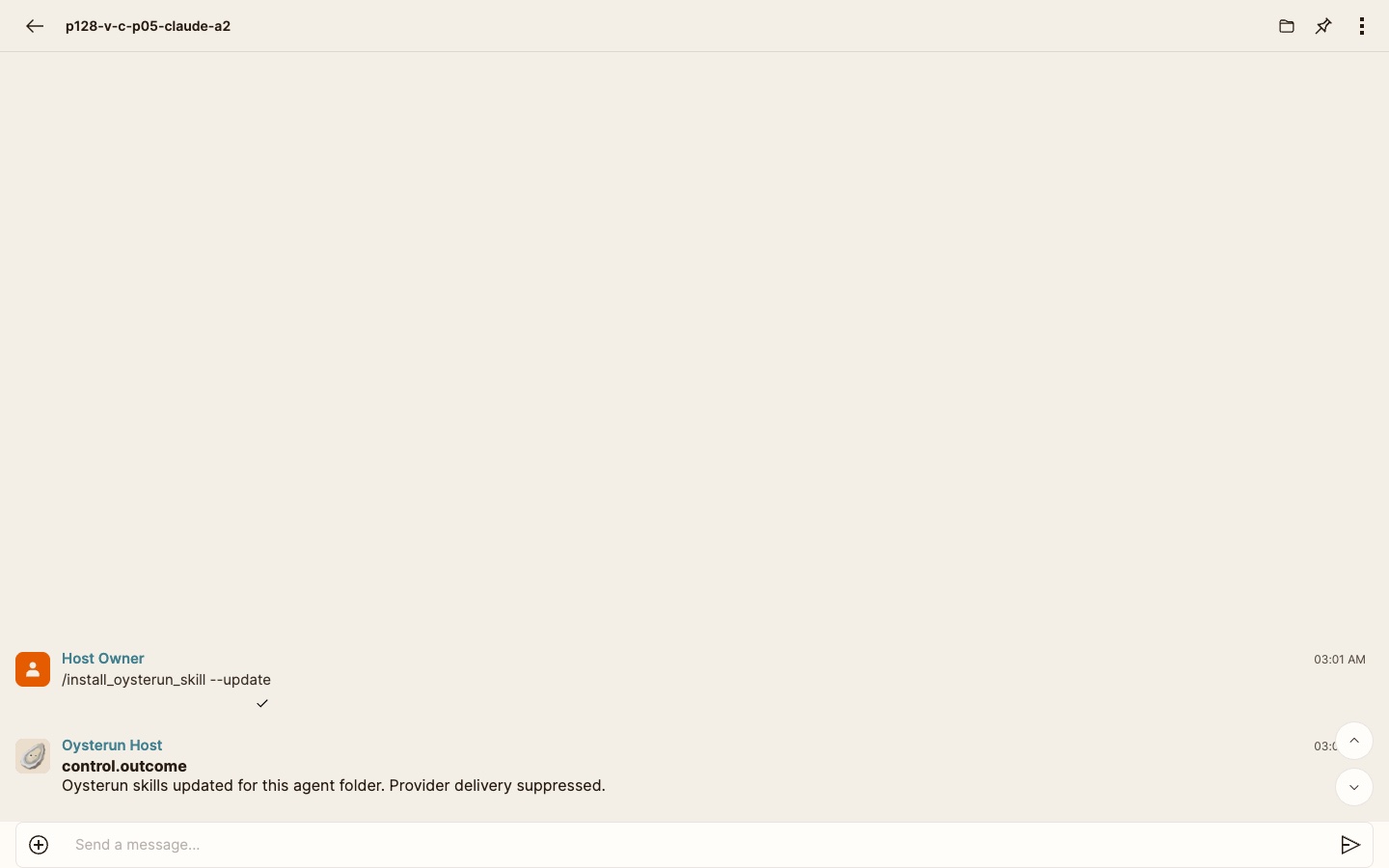
- Wait for the timeline result. A completed composer update says
Oysterun skills updated for this agent folder. Provider delivery suppressed.
- Do not select the entry again merely because the menu closed. Reopen / only after the timeline result appears.
4. Verify before asking the provider to use a Skill
- Return to the same live Session and type /.
- Wait for the status check to finish.
- Confirm that /update_oysterun_skill and the product-Skill helper entries are present.
- If you selected the update in step 3, require both its completed timeline result and this refreshed installed-state menu before treating the update as verified.
5. Choose the helper that matches the task
Inspect full-size screenshot
| Helper | Use it for |
|---|---|
/oysterun_sessions_skill | Session lists, status, URLs, profiles, start, resume, rename, restart, interrupt, or stop |
/oysterun_session_chat_skill | Session messages, search, sending, or in-Session Loops |
/oysterun_find_context_skill | Bounded message context around one known event |
/oysterun_scheduler_skill | Host schedules and their runs or logs, not in-Session Loops |
/oysterun_mail_skill | Oysterun Mail |
/oysterun_notifications_skill | Notification status or an explicitly authorized send |
/oysterun_website_skill | Website status, setup, validation, URL, or access |
/oysterun_telegram_skill | Telegram status or per-Session Telegram setup |
6. Use one Skill for a read-only task
Inspect full-size screenshot
- In the same composer, type /oysterun_sessions_skill.
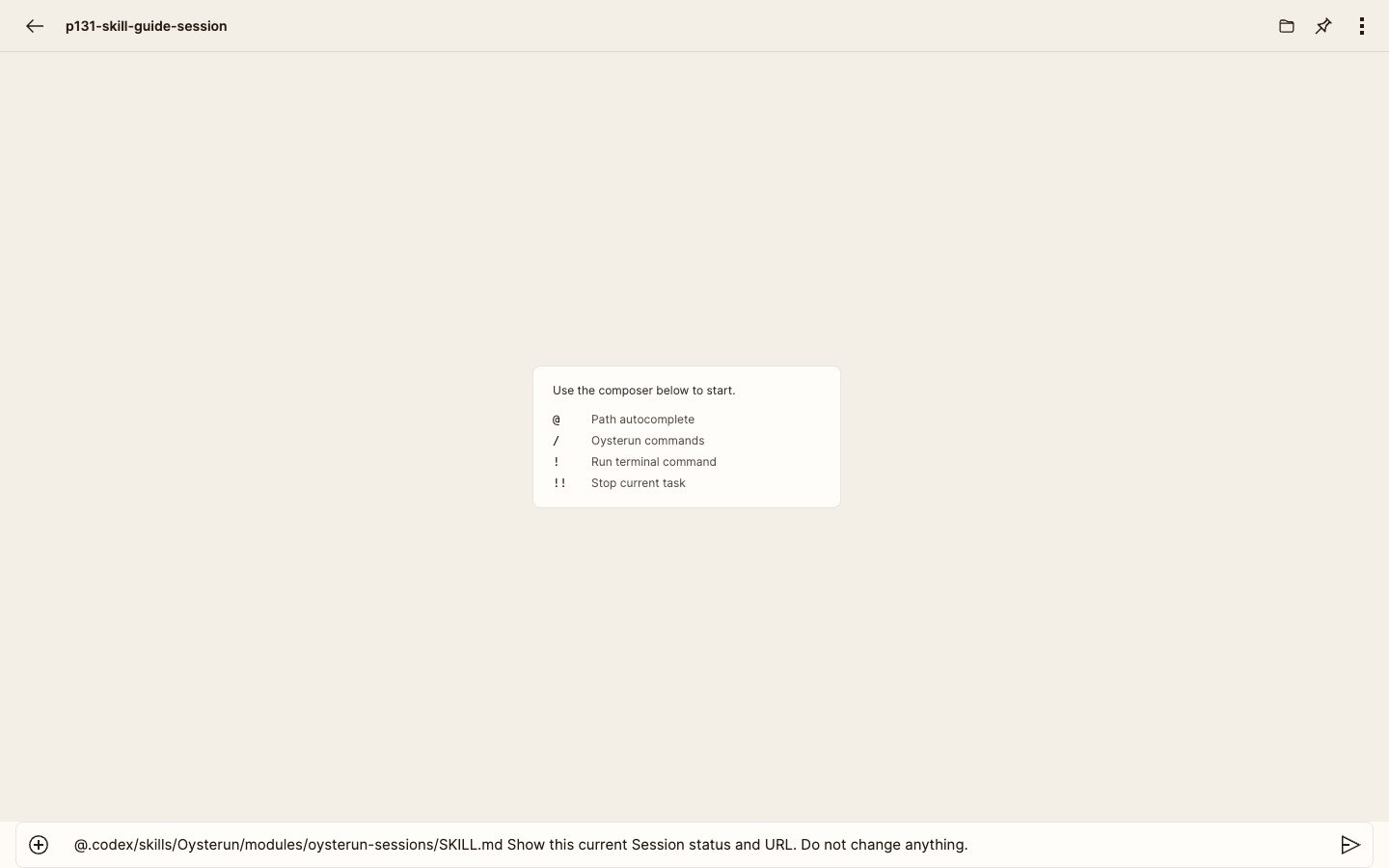
- Select the matching helper. Oysterun inserts the correct Claude- or Codex-relative Skill reference into the draft. This does not send or run anything.
- After the inserted reference, add:
Show this current Session's status and URL. Do not change anything.
- Review the complete draft, then select Send message once.
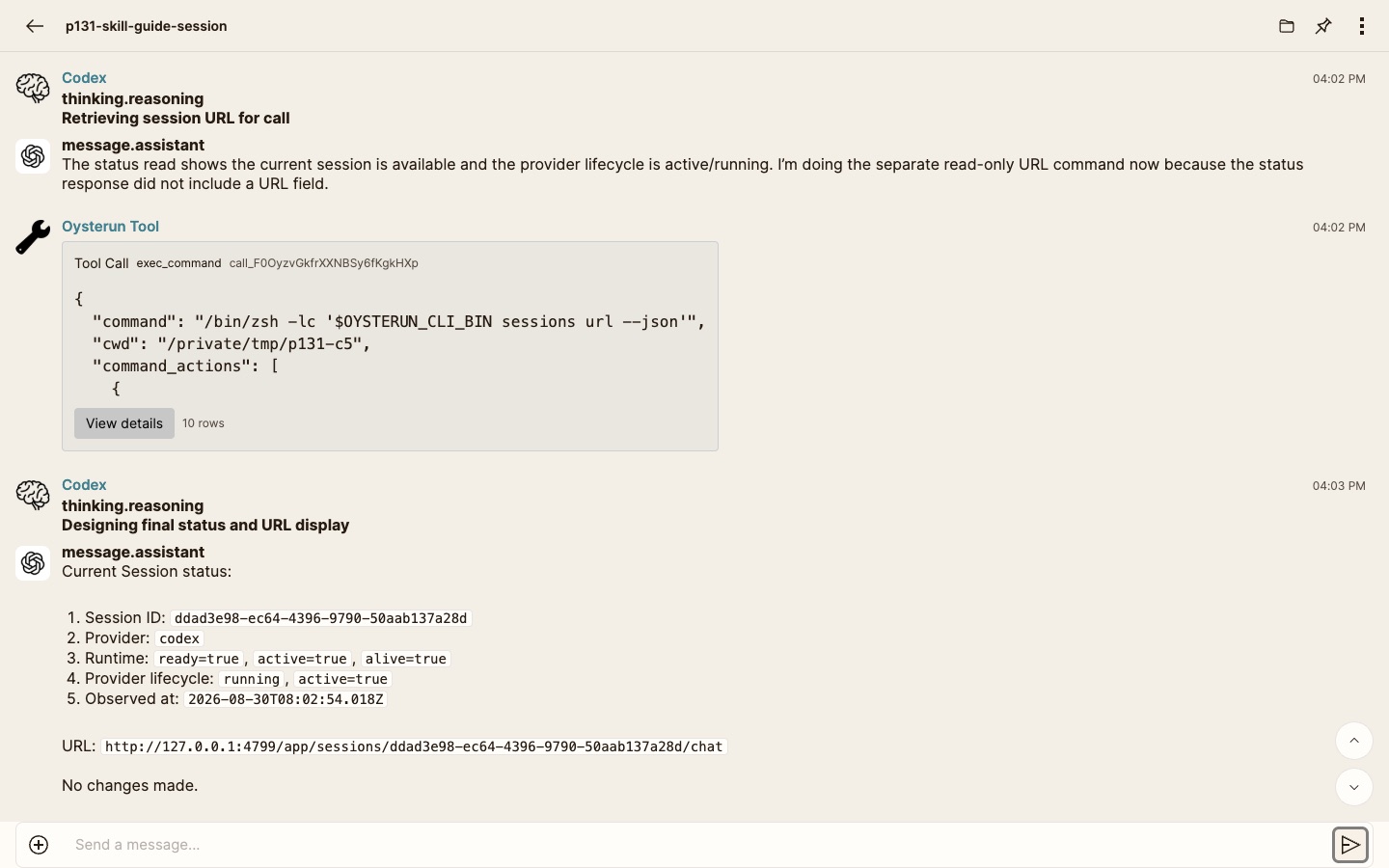
- Wait for the provider's terminal response. Confirm that it reports the current Session's status and URL rather than a generic explanation or another Session.
7. Keep Claude and Codex behavior aligned
- The same eight Oysterun helper names are available for both supported providers.
- There is no separate capability-selection step in this journey. An eligible installed Oysterun set exposes its helpers by default, while every selected Skill still keeps its own safety and authorization rules.
- Let the menu insert the provider-correct Skill reference. Do not copy a reference from a Claude Session into Codex or the reverse.
- Changing the Session provider or Session folder changes the Skill-status target. Reopen / and check the new state instead of assuming the prior install applies.
- Installation makes the Skill files available; the provider still has to follow the selected Skill and return the requested result.
8. Recover without forcing an overwrite or duplicate action
- Loading Oysterun commands...: wait for it to settle. If it does not, reload the same Session once and reopen /.
- Oysterun commands unavailable: preserve the visible error, confirm the Session is still live, and retry the status check once.
- Oysterun skill folder is not managed: stop. Do not use update and do not delete the existing folder from this flow.
- Oysterun skills unavailable: stop this path and use a Claude or Codex Session with the intended folder.
- Install or update failed: do not repeat blindly. Preserve the visible result and reopen Session Profile to read the current Provider Skill Set state.
- Installed, but helpers are absent: reopen the composer menu once after the status refresh. If they remain absent, stop with the visible status and do not claim verification.
- The provider returns the wrong task or route: do not treat installation as proof of Skill use. Repeat the exact helper and read-only request once; if the result is still wrong, preserve it and stop.