
Use this guide when a Session has a long sequence of Tool activity or a Tool result that is too large to show in full. You will identify which case you have, open the supported detail view, page through bounded content, and stop without repeating a command that may have side effects.
Before you start
- Your Oysterun Host is connected and you can open the relevant Session.
- The Session contains a visible Tool Call, Tool Update, Tool Output, Tool Result, Tool Error, or grouped Tool row.
- You know whether the original command could change files, accounts, services, or other external state. If it could, do not run it again merely to get a different display.
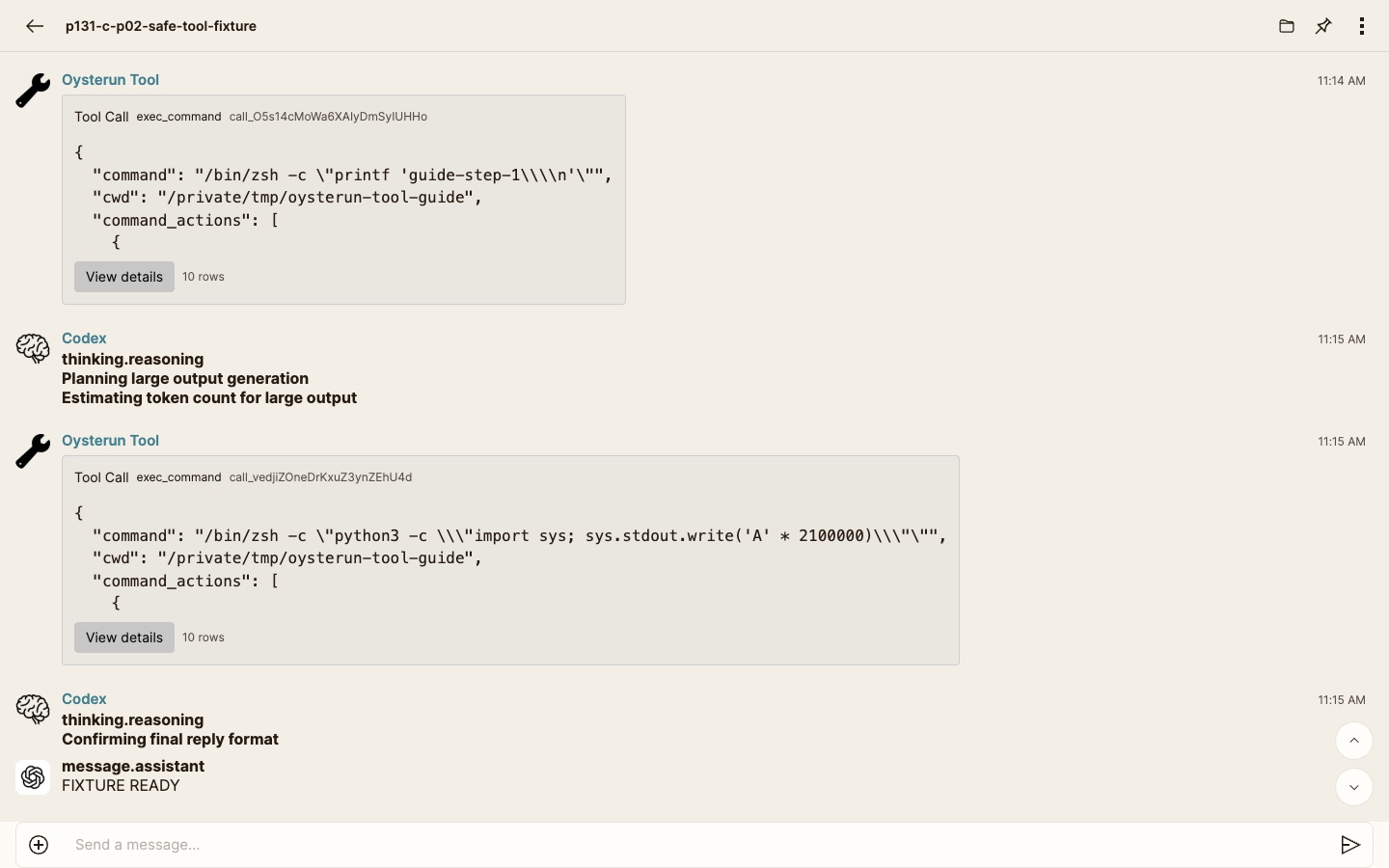
Starting screen: open the Session chat and scroll to the Tool row associated with the result you need to inspect.
1. Identify which large-result case you have
| What you see | What it means | Supported reading path |
|---|---|---|
| One retained Tool row represents a long sequence of calls, updates, outputs, results, or failures | This is a long multi-event Tool run. Later events can be grouped outside the main chat timeline. | Choose View details, then use the invocation pages. |
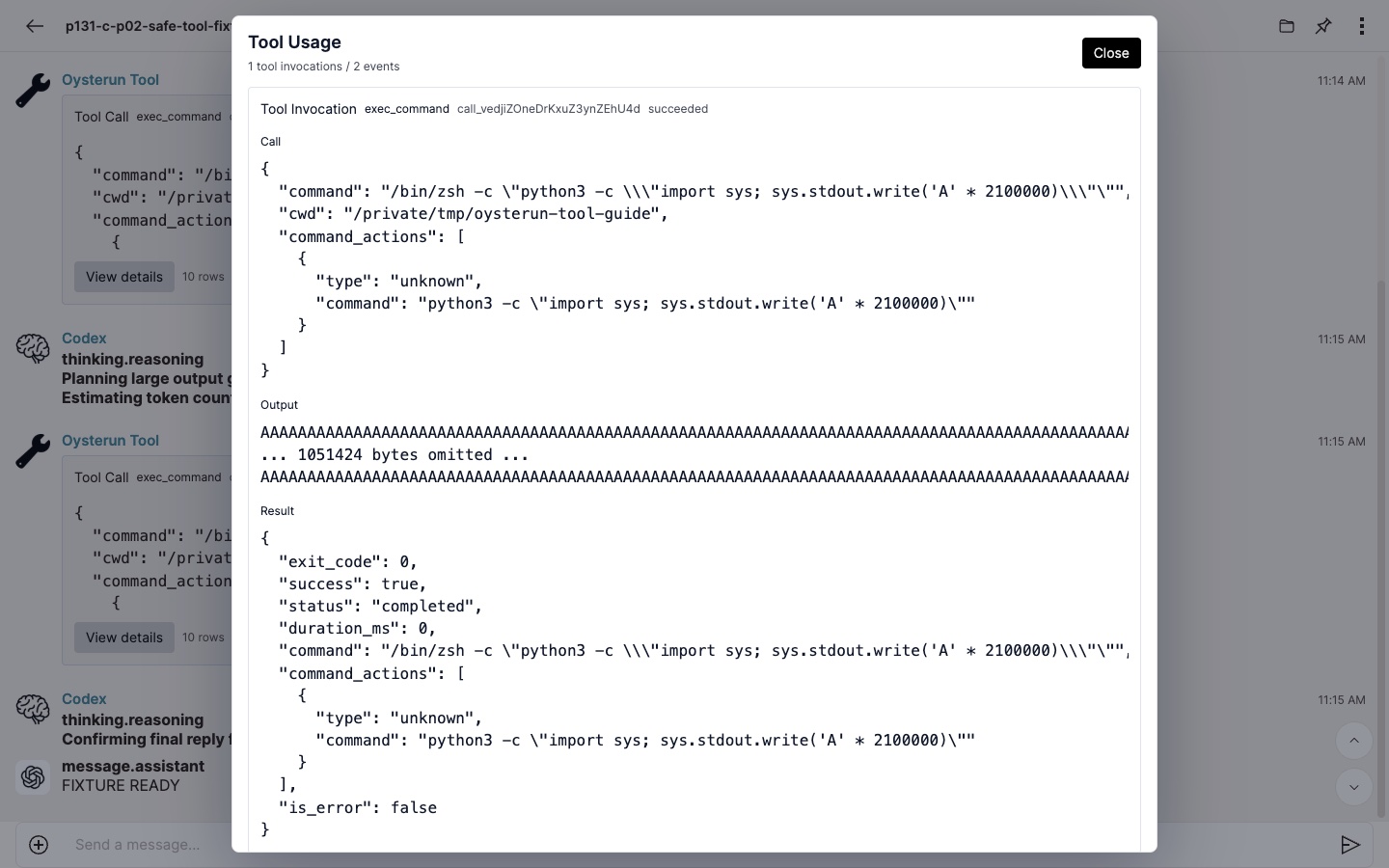
| One Tool result shows only a summary, preview, or size-limit state | That individual result is bounded. Its full content may be too large for Oysterun to display. | Read the available preview or detail. Do not expect long-run paging to reveal the rest of that one result. |
| A normal historical Tool row has no View details action | It may be an older single event with no supported continuation. | Use the content visible in the row and do not treat the missing action as evidence that the command failed. |
2. Open the supported Tool detail view
Inspect full-size screenshot
- Find the first retained Tool row for the run you want to inspect.
- Read its title and preview so that you do not open a neighboring result by mistake.
- Choose View details.
3. Read a long Tool run one invocation at a time
Inspect full-size screenshot
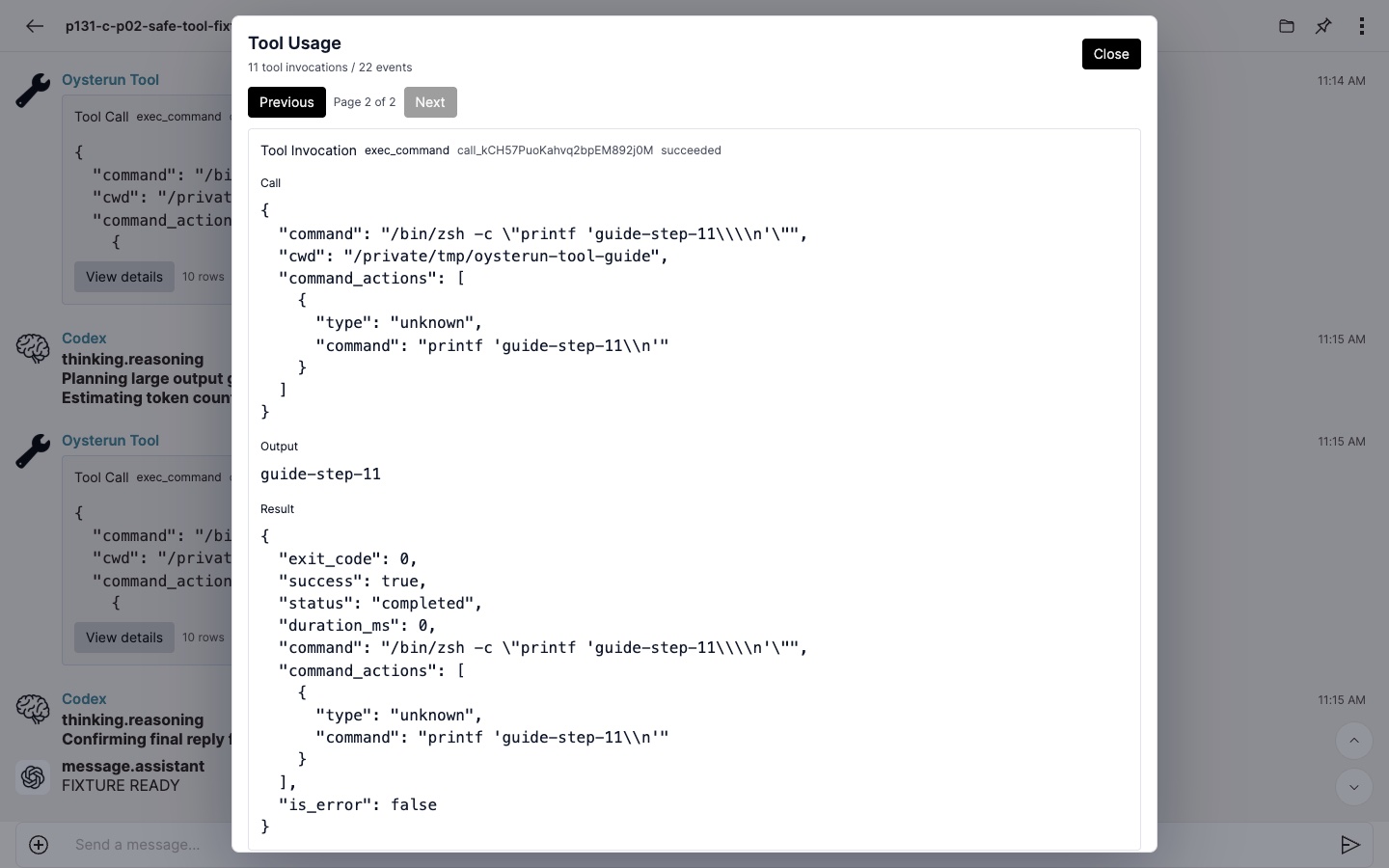
- Start with the selected Tool Invocation. Its state may be active, succeeded, failed, or incomplete.
- Read the sections that are present: Call, Updates, Output, and Result. A section can be absent when that invocation did not produce that kind of event.
- If the dialog shows page controls, use to move through the run. Each page contains at most 10 logical invocations.
- On each page, select the invocation whose content you need, then read its currently available sections.
4. Understand the boundary for one oversized result
Inspect full-size screenshot
Oysterun keeps Tool detail bounded so that one result cannot overwhelm the Session view. The collapsed row may contain only a summary or preview, and View details shows only the portion that is currently available for display.
Use the visible summary, preview, state, and bounded detail to decide what happened. Do not rely on a provider-local path or hidden storage location as a public recovery route.
5. Recover without repeating the Tool action
- The wrong detail opened: choose Close, locate the intended Tool row, and choose its View details action.
- The detail is still loading: wait for the current request to settle. If it does not, close the dialog and reopen the same row once.
- The dialog reports an incomplete or older Tool Detail pipeline: close it, reopen the same Session once, and try the same row once. If the message remains, preserve the visible error and ask the person who manages the Host for help. Do not restart the Host yourself unless that person explicitly directs you to do so.
- The result is bounded by size: treat the missing remainder as unavailable in this view. If you need a future result to be readable here, ask for a smaller summary or clearly bounded chunks before running the task again.
- The original command might have side effects: do not rerun it just to obtain more detail. Confirm its visible final state first, then ask the Host manager or task owner how to proceed.
6. Close the detail view and confirm your place
Inspect full-size screenshot
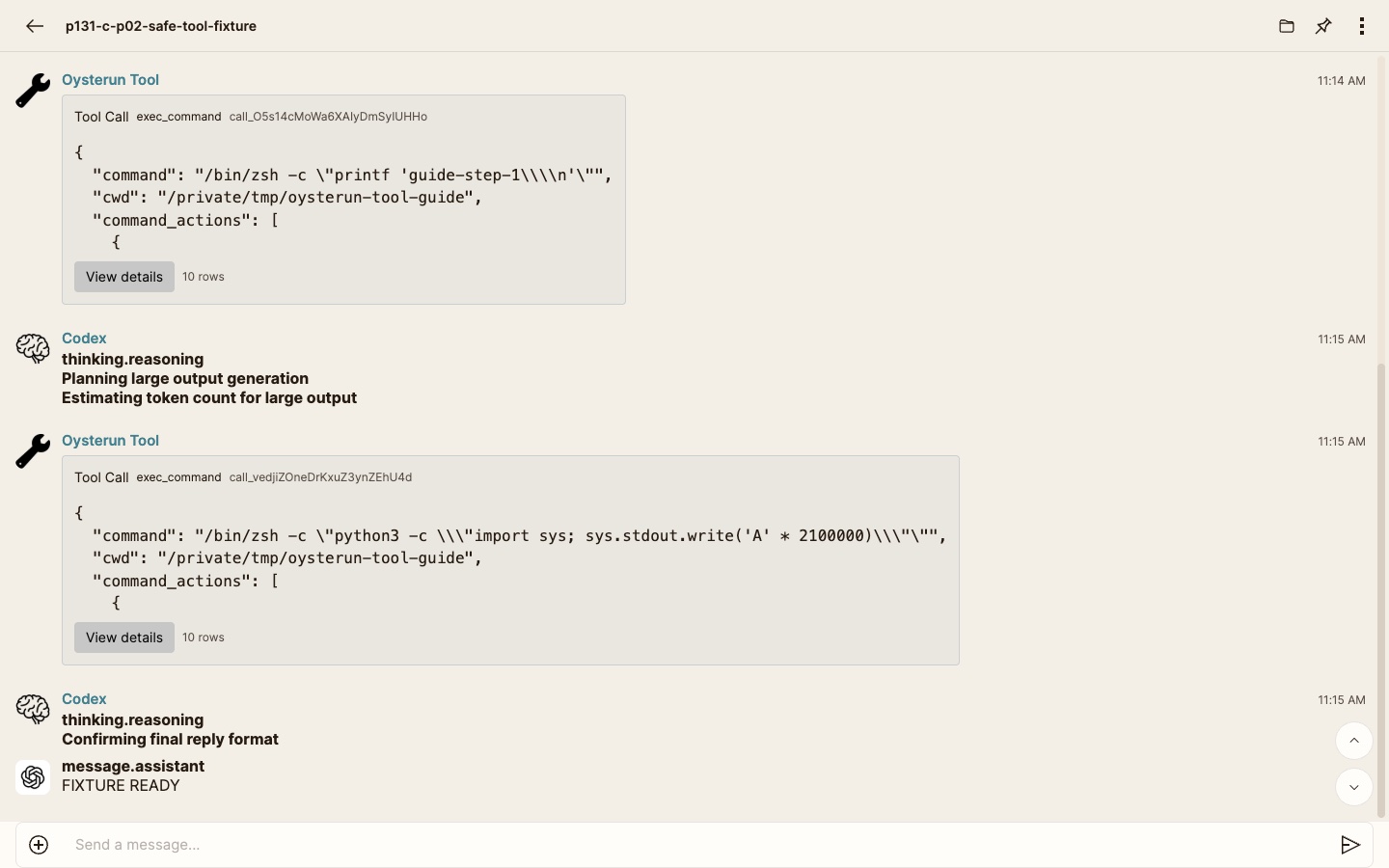
- Choose Close.
- Confirm that you are back in the same Session and that the original Tool row is still visible.
- Record the invocation state and the bounded information you actually read. Do not describe unseen content as recovered.