
Use Session Setup to choose a focused task root, keep the rest of your draft intact while you browse, and decide whether eligible settings apply only to this launch or are saved with the project.
1. Prepare a focused task folder
Start on the Oysterun Sessions page. You need access to the intended Host and an existing folder that the Host can read.
- Put only the files needed for this task in one focused folder.
- Avoid selecting a disk root, your whole home folder, or a broad shared parent merely to make setup easier.
- Confirm that the provider you intend to use is already available on this Host.
2. Know which visible settings win
A fresh Session Setup combines settings in this order:
- Host defaults seed a new form, including the default Browse Root and runtime.
- Project settings from the selected folder can supply shared Session defaults.
- Your current Session Setup choices are the launch-time values. Treat the values visible in the form as the draft you are about to use.
Shared project settings belong in .oysterun/config.json. Passwords, tokens, and other private values do not belong there. A later runtime-only change in Session Profile affects the running Session unless you explicitly choose its update-config option.
3. Open Session Setup and review the draft
- On Sessions, choose New Session.
- Confirm that the page title is Session Setup.
- Review Agent ID, Session Name, Agent Runtime, Model, reasoning, and Start Folder.
- Change the provider fields now if this Session needs values different from the displayed defaults.
Checkpoint: before opening the picker, you can state the exact Start Folder, Agent ID, Session Name, provider, model, and reasoning value shown in the draft.
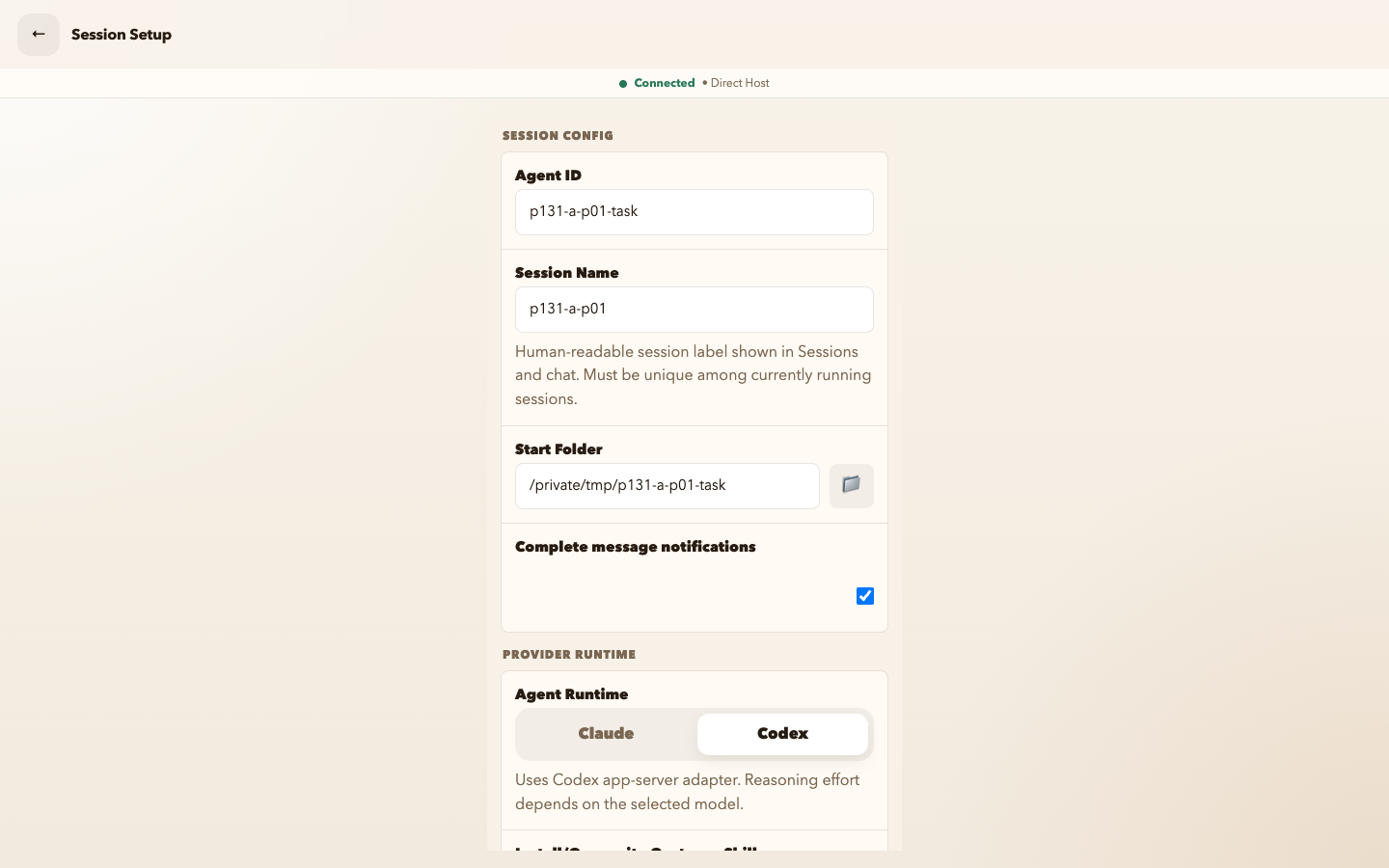
Inspect full-size screenshot
4. Confirm or cancel a folder choice without losing the draft
Browsing does not commit a folder. Use Go back to cancel and return to the same draft, or use the triangular Use this folder action beside the breadcrumb to confirm the folder currently shown.
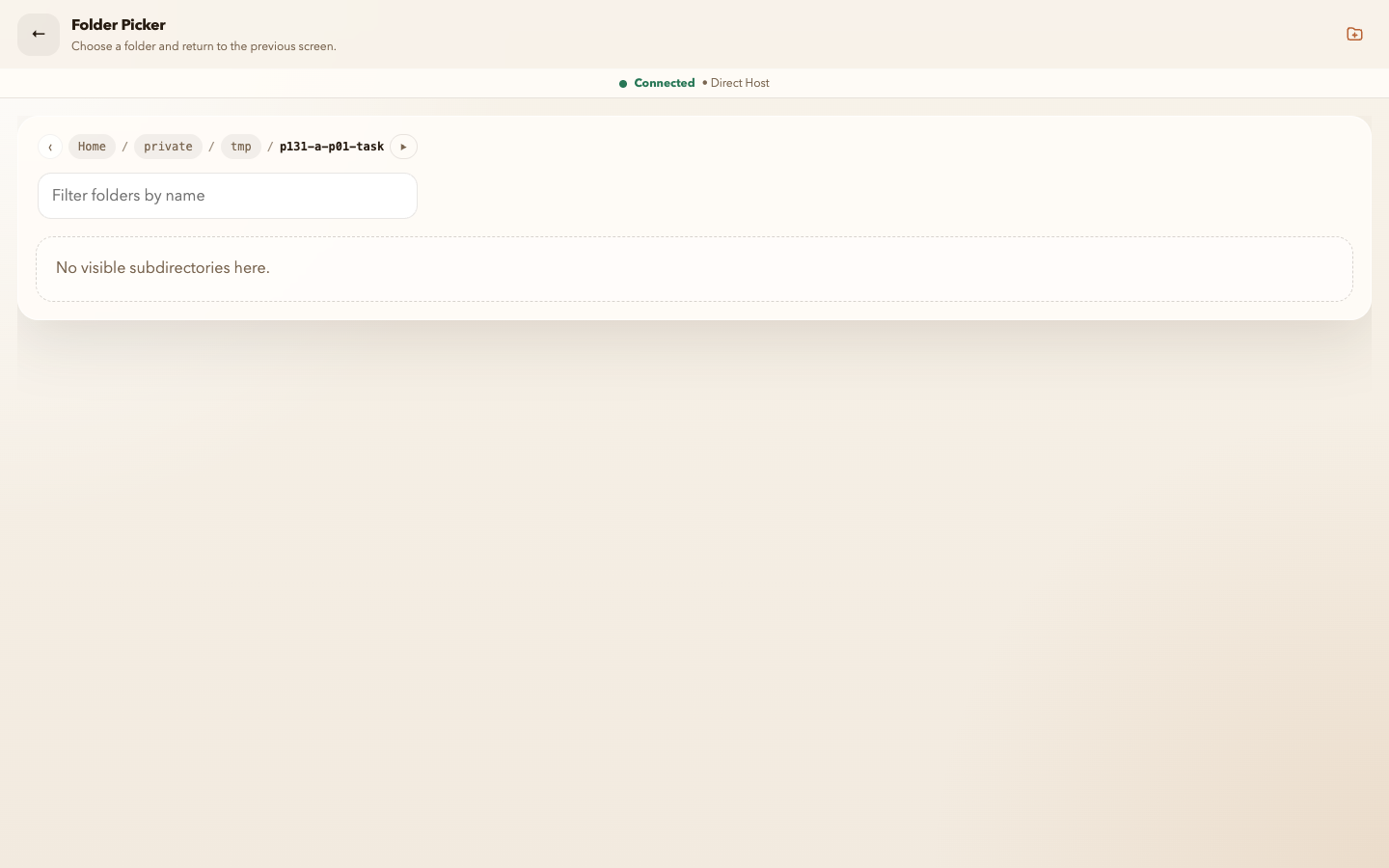
Inspect full-size screenshot
Cancel the picker
- Use the Choose folder control beside Start Folder.
- On Folder Picker, browse to another folder if you want to inspect it.
- To cancel, use the top-bar Go back control without choosing Use this folder.
Cancel checkpoint: Session Setup returns with Start Folder, Agent ID, Session Name, provider, model, and reasoning unchanged. Folder Picker navigation alone does not commit a choice.
Confirm the intended folder
- Open Choose folder again and navigate to the focused task folder.
- Choose Use this folder for that exact folder.
- Back on Session Setup, read the complete Start Folder value rather than relying on the last folder name alone.
- Recheck Agent ID and Session Name if Oysterun generated them from the folder, then recheck the provider, model, and reasoning values you entered.
Confirm checkpoint: Start Folder now shows the intended folder. Use this folder updates the Session Setup draft; it does not start a Session or write project settings by itself.
5. Decide whether the settings are saved
Session Setup has one launch action, Start Session. Before using it, read the config checkbox label because its meaning depends on whether the selected folder already has a shared config file. The checkbox label describes what checking it will do.
The folder already has .oysterun/config.json
- Check Update .oysterun/config.json to save eligible shared values for later Sessions.
- Leave it unchecked to use the visible choices for this launch without changing the existing shared config file.
The folder has no shared config file
- The label becomes Do not create .oysterun/config.json.
- Leave it unchecked for the normal behavior: create the shared config when the Session starts.
- Check it when you want this launch to leave the shared config absent.
If you want to cancel the entire setup, leave Session Setup without choosing Start Session. A folder choice in the draft is not a durable save.
6. Start once and verify the selected root
- Review the complete Start Folder and config option one final time.
- Choose Start Session.
- On desktop or phone, when the Session chat opens, use the top-bar More Options control (vertical ellipsis), then choose Session Profile.
- Confirm that Working Directory is the complete Start Folder you selected.
- In Workspace Policy, confirm that Root shows the same complete folder.
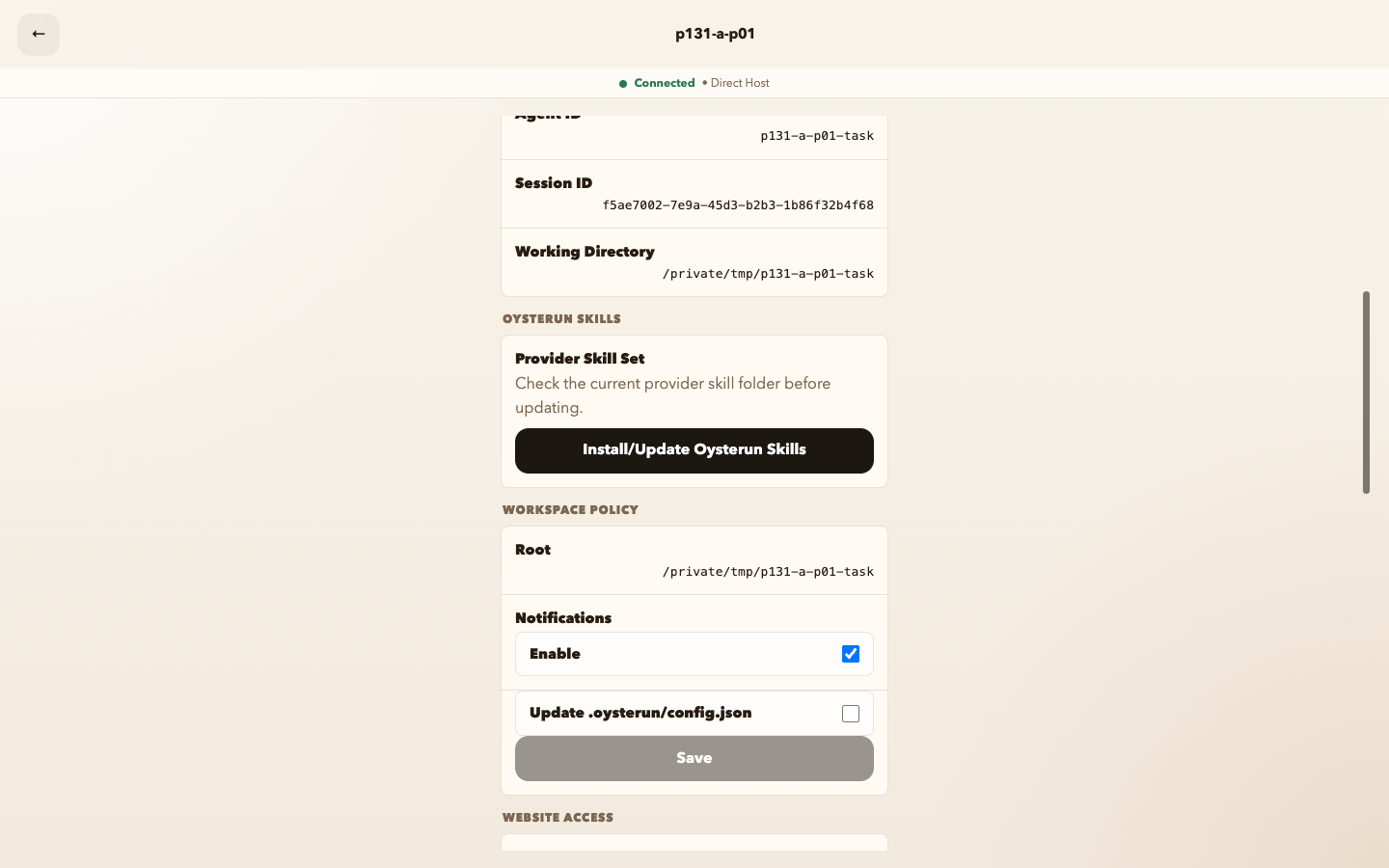
Inspect full-size screenshot
Recover safely and know when to stop
- The picker cannot open the folder: return to Sessions, confirm the Host can read the folder, and choose another focused folder you own.
- Cancel changed the draft: do not launch. Return to Sessions, open a fresh New Session, and repeat the cancel check; the current product is expected to preserve the draft.
- The config option is not the mode you intended: correct it before Start Session. Do not hand-edit runtime files as the primary recovery.
- Session Profile shows a different Root: do not perform file operations. Stop using that Session and create a new one with the intended Start Folder.
- An Allowed Paths control appears: do not rely on it as active folder protection. It is a diagnostic-only surface in the current product.
Safe stop: do not choose Start Session until the full path, visible provider settings, and config option are all correct.