
Choose the agent runtime that should own a new Session, keep Oysterun dashboard access separate from provider login, and prove that the selected provider can answer now instead of treating an installed command or loaded model list as readiness.
1. Start from the intended Host and folder
- Open the intended Oysterun Host and reach Sessions. Entering the Host dashboard password unlocks Oysterun only; it does not sign Codex, Claude Code, or Grok in.
- Confirm that the intended Codex, Claude Code, or Grok command resolves for the same operating-system user that runs the Host. An installation owned only by another user does not make that runtime available here.
- Know which Start Folder the new Session should use. Provider readiness is checked for the Session you are about to create, not for a different Host or folder.
2. Choose Codex, Claude, or Grok in Session Setup
- From Sessions, choose New Session.
- In Session Setup, find Provider Runtime, then Agent Runtime.
- Choose Codex, Claude, or Grok. Oysterun shows only runtimes whose saved command is currently available on this Host. A missing runtime is not currently offered by that Host.
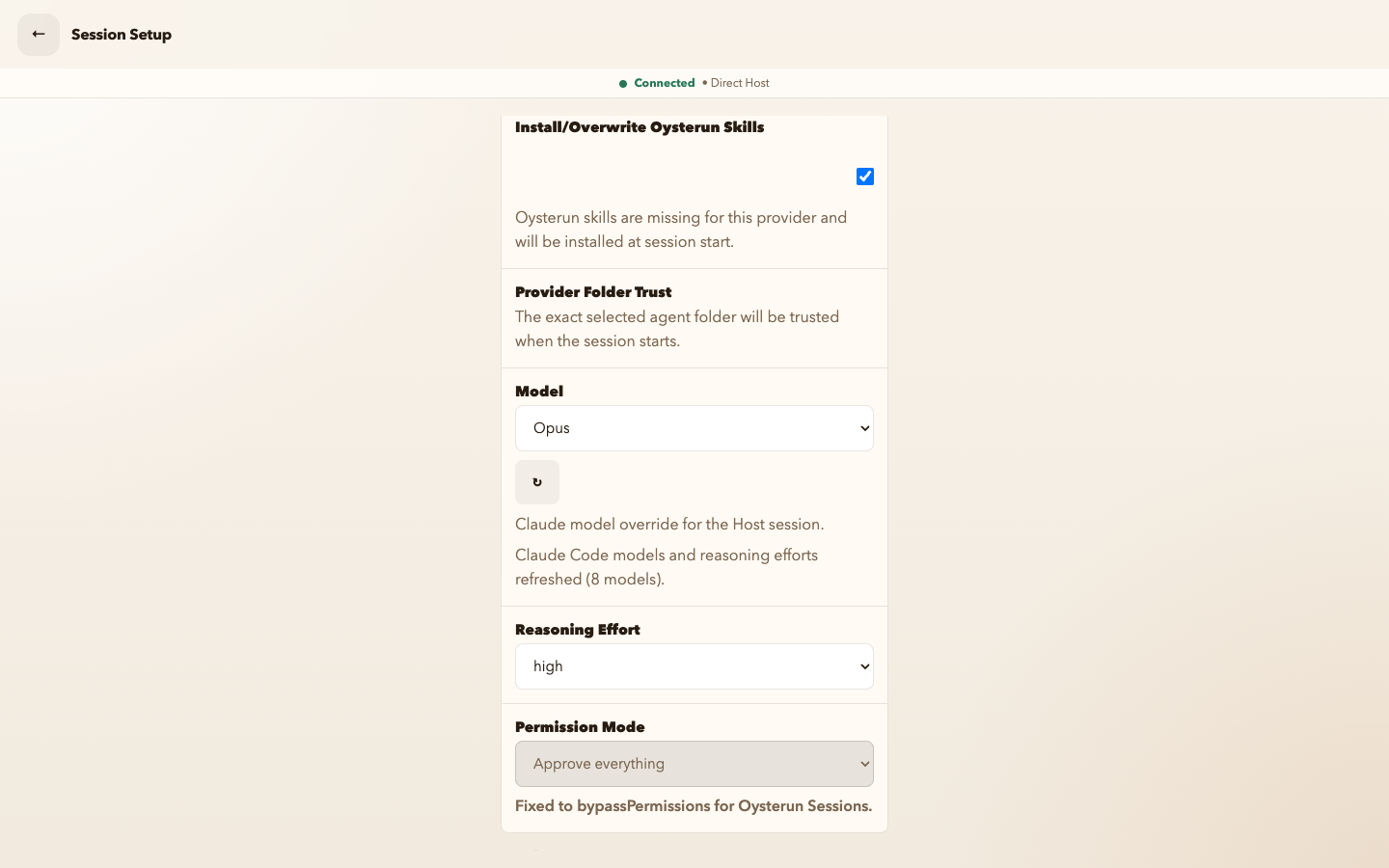
- Read the visible Model, Reasoning Effort, and provider-specific fixed control before continuing.
Claude
Claude uses Permission Mode. In normal Oysterun Sessions it is disabled intentionally and says Fixed for Oysterun Sessions. A grey fixed control is not an availability failure. Claude reasoning choices may include auto, which leaves the effort at the provider default.
Codex
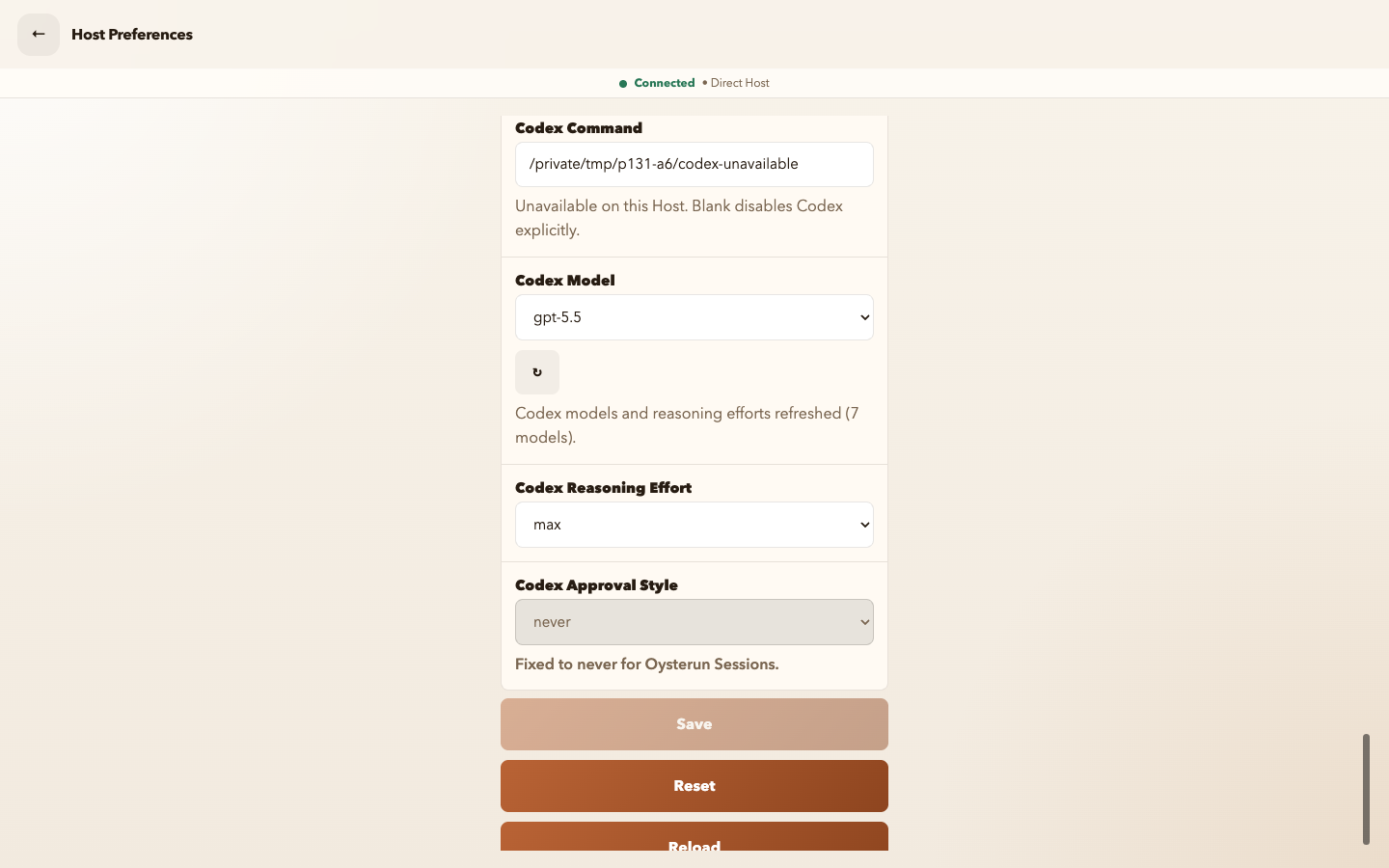
Codex uses Approval Style. In normal Oysterun Sessions it is disabled intentionally and says Fixed for Oysterun Sessions. Codex has no auto reasoning choice. Oysterun displays the product label max when the selected Codex model supports native xhigh.
Grok
Grok requires the official CLI version 1.0.25 or newer. Its Model and Reasoning Effort choices come from structured provider metadata; update the CLI if Oysterun reports an older or unverifiable version.
If a saved default runtime is unavailable, Oysterun can temporarily select another available runtime for a fresh Session and says which saved provider is unavailable and which provider new Sessions will use. Treat the highlighted Codex, Claude, or Grok button—not the old default—as the current choice. Switching providers is a deliberate new choice: recheck Model and Reasoning Effort before starting.
3. Refresh the selected catalog once when needed
Oysterun maintains Host-owned provider catalogs in the background. Use the manual control when choices are empty, stale, or do not match what the selected provider now supports:
- Confirm the intended Agent Runtime is selected.
- Next to Model, choose the ↻ button whose accessible label is Refresh provider models.
- Wait for its terminal status. Success says that the selected provider's models and reasoning efforts refreshed, optionally with a model count.
- Read Model and Reasoning Effort again. A removed value falls back to a value from the refreshed catalog; do not re-create a stale value by guessing.
Not success: refresh skipped, provider unavailable, or Could not refresh leaves readiness unresolved. Do not repeatedly press refresh or claim that the reasoning choices changed.
Inspect full-size screenshot
4. Prove runtime readiness with one Session
- Complete the required Agent ID, unique Session Name, and intended Start Folder.
- Confirm Start Session is enabled and choose it once.
- Let Oysterun complete its provider startup check. A fatal command/startup failure can stay visible in Session Setup, but a provider-login failure can appear only after Chat opens and you send the first message.
- When Chat opens, send a short, non-sensitive message and wait for a normal response.
Ready verdict: reaching Chat proves the Session was created and bound; receiving the short response proves the selected provider can handle a turn now. Finding the command, loading a model list, opening Chat, signing into the Oysterun dashboard, or seeing lifecycle words such as active, alive, or ready alone proves less.
5. Recover an unavailable runtime without hiding it
First distinguish a failed provider check from an unavailable command. If Session Setup says Could not load provider status. Retry the provider check., choose its visible Retry once. Do not edit Host Preferences unless the completed check instead says No providers are currently available on this Host. Update Host Preferences to enable a runtime., or the intended runtime button remains absent.
Inspect full-size screenshot
- Open the Oysterun menu and choose Host Preferences.
- Find the intended Codex, Claude, or Grok Runtime Defaults.
- Read the matching provider command. A blank field disables that runtime explicitly. An available command says Available on this Host.; an unresolved one says Unavailable on this Host.
- Fix the provider installation or executable path for the Host's operating-system user. If you change the command field, choose Save, then return to Session Setup.
- Select the runtime, refresh its models once, and continue only after a success status and valid Model/Reasoning Effort choices are visible.
Do not enter a shell command, token, or login code into the command-path field. Do not blank the other provider merely to make the intended one appear. If the command remains unavailable after the path is corrected, stop and preserve the visible status for diagnosis.
6. Use the provider-specific login path
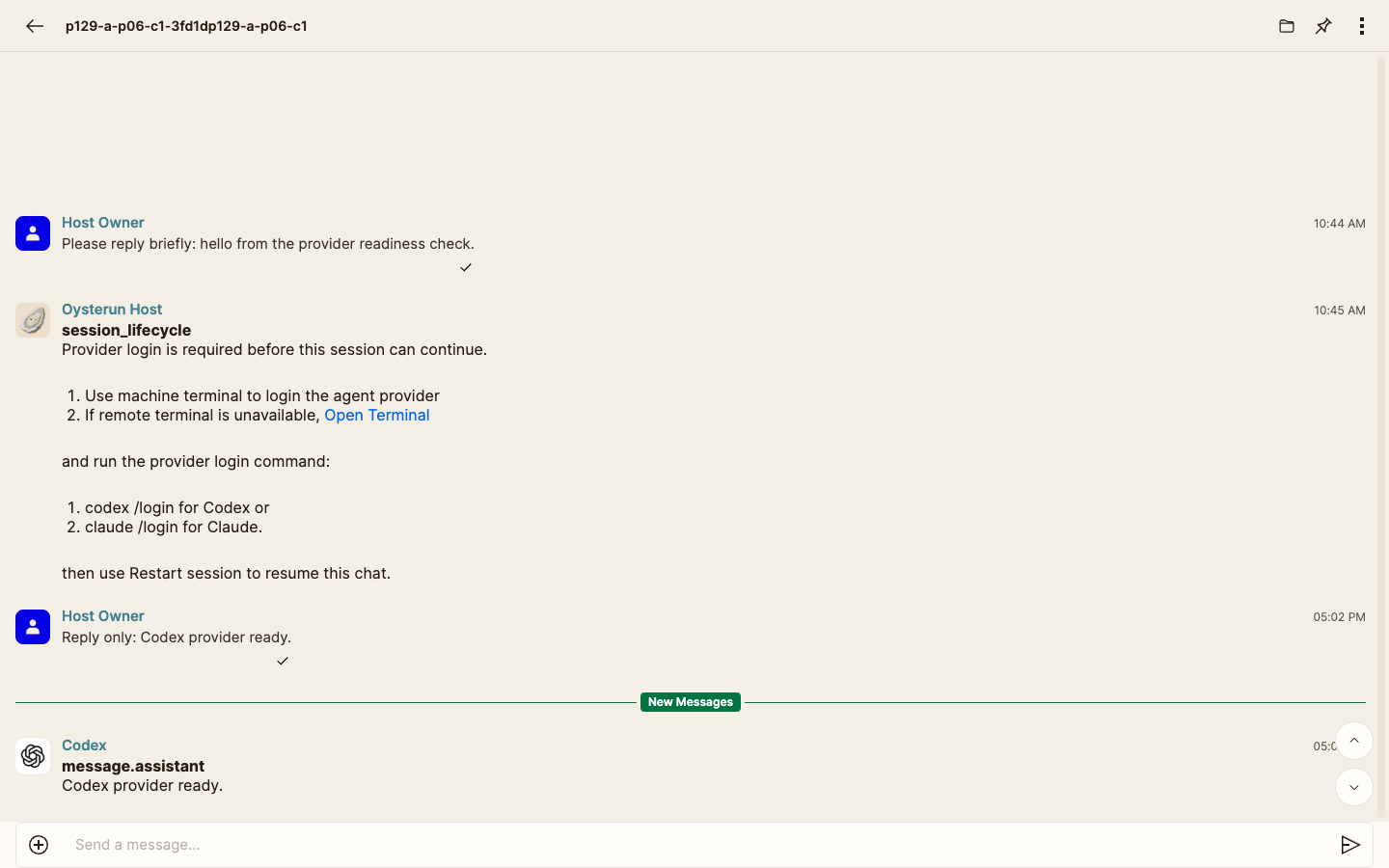
If Chat displays Provider login is required before this session can continue., the Session exists but its selected provider is not ready. Follow its bounded recovery:
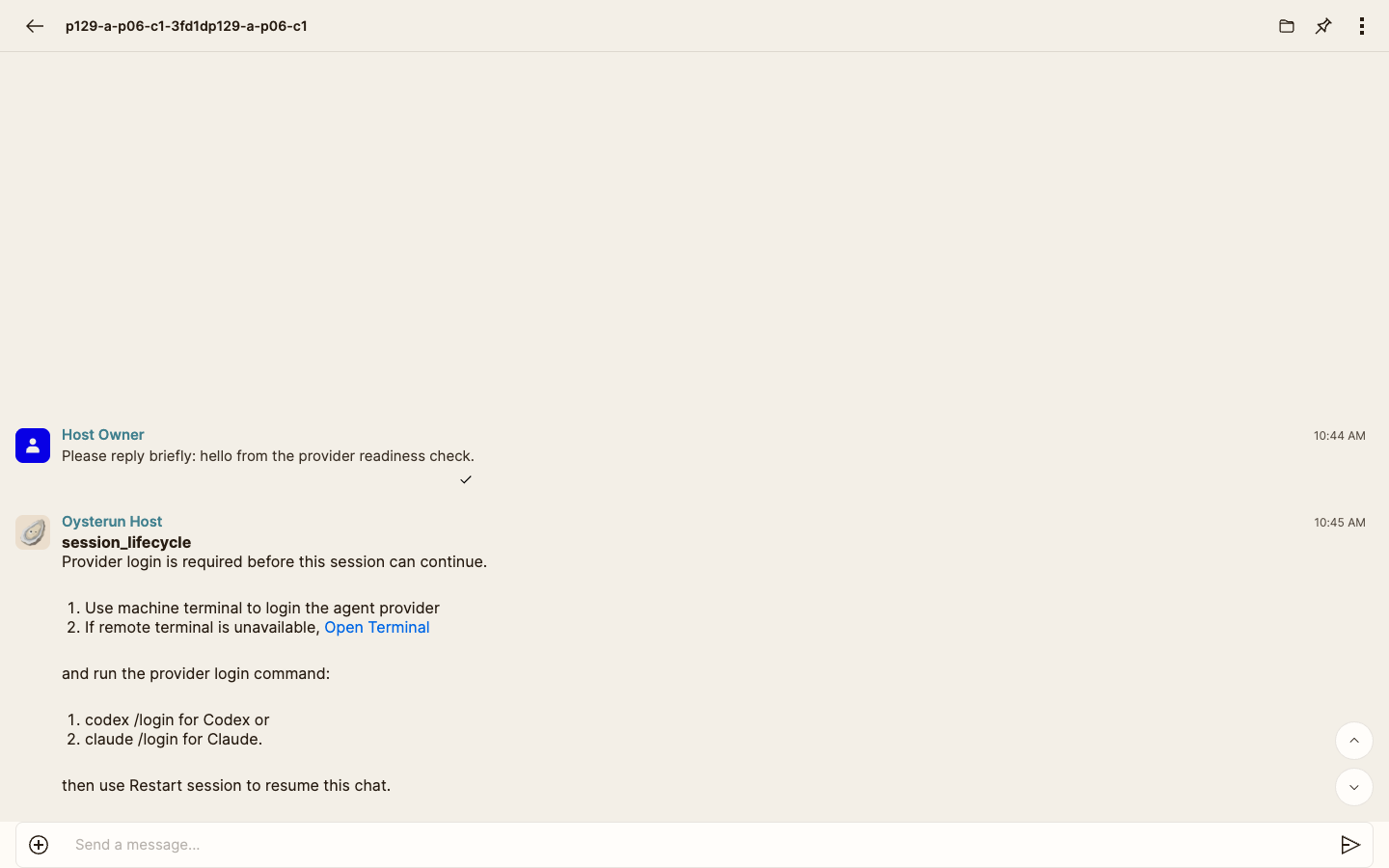
codex /login, and Restart session together without exposing an authentication URL, code, account, or secret.Inspect full-size screenshot
- Use the machine terminal. If it is not otherwise available, choose the Open Terminal link in the visible system row.
- For Codex, run
codex /login. For Claude, runclaude /login. For Grok, rungrok login. - Finish the provider-owned browser or terminal login without capturing its URL, code, token, or output as public evidence.
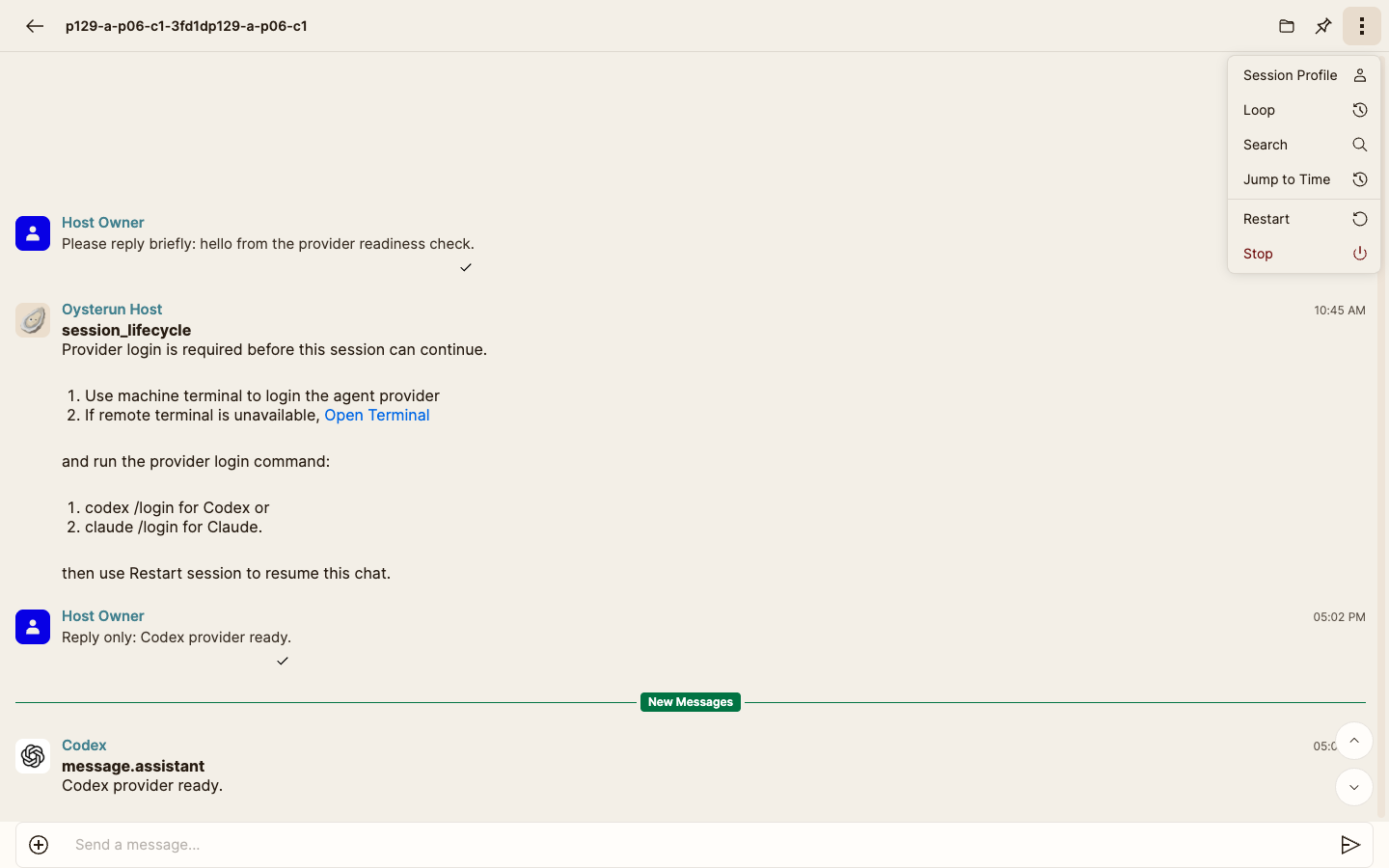
- Return to the same affected Chat. The system row calls for Restart session; use More Options (vertical ellipsis) → Restart. This restarts only that provider Session; it is not permission to restart the Oysterun Host.
- Send one short non-sensitive message. A normal response is the recovery verdict.
Inspect full-size screenshot
Inspect full-size screenshot
An existing Claude Chat also lists /login as Connect Claude with the Host-side login flow. When that control is available, it opens Claude connection; complete Open Login URL and any requested Code or Input, then use Refresh Status. This in-product flow is Claude-specific. Do not promise the same connection sheet for Codex.
7. End with a visible verdict
Ready
The intended Agent Runtime is selected; refresh ended successfully when it was needed; Model and Reasoning Effort are valid; Start Session reached Chat; and the provider returned a normal response.
Recovered
The exact unavailable command or login state was preserved, one supported correction was completed, and the same readiness proof then passed.
Stop
The provider check cannot load, refresh skips or fails, the command stays unavailable, login remains required, or the test turn fails without output. Keep the visible error and do not describe the provider as ready, silently switch it, repeatedly retry, edit hidden Host files, or restart the Host.
Final checkpoint: name the Host, Agent Runtime, Model, and visible terminal status—not credentials or private paths—in a support report. If you deliberately choose the other provider, begin a new selection/readiness proof for that provider instead of treating it as recovery of the first.