
Use this guide when you need to inspect or operate Oysterun from a terminal. You will find the supported product modules, resolve the intended Host, distinguish read-only commands from commands that change state, and use the exact dry-run and confirmation boundary for protected mutations.
Before you start
- Oysterun is installed on the machine where you will run the command.
- You know which Oysterun Host the command is meant to reach.
- You already have approved access for that Host, either from an authenticated operator terminal or the current live Session environment.
- You have the exact Session, schedule, Loop, Mail, Website, or Agent identifier needed by the operation.
Starting screen: open a terminal on the machine that owns or can reach the intended Host. Do not begin by guessing an action name.
1. Find the supported product modules
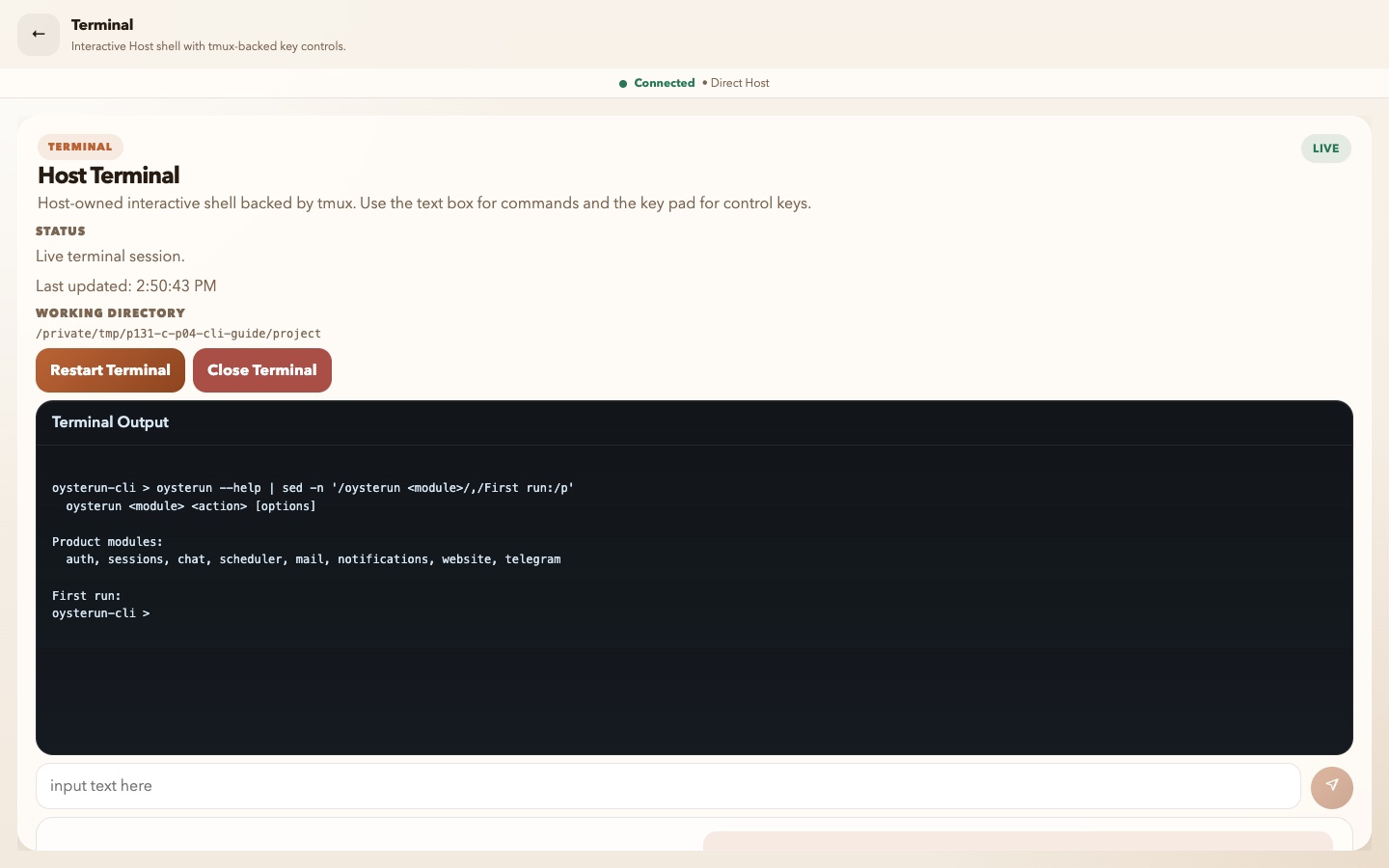
oysterun --help shows the command shape and the current supported modules in a clean terminal.Inspect full-size screenshot
Run the top-level help command:
oysterun --helpUnder Product modules, the current CLI lists:
auth, sessions, chat, scheduler, mail, notifications, website, telegram2. Resolve the target before doing anything else
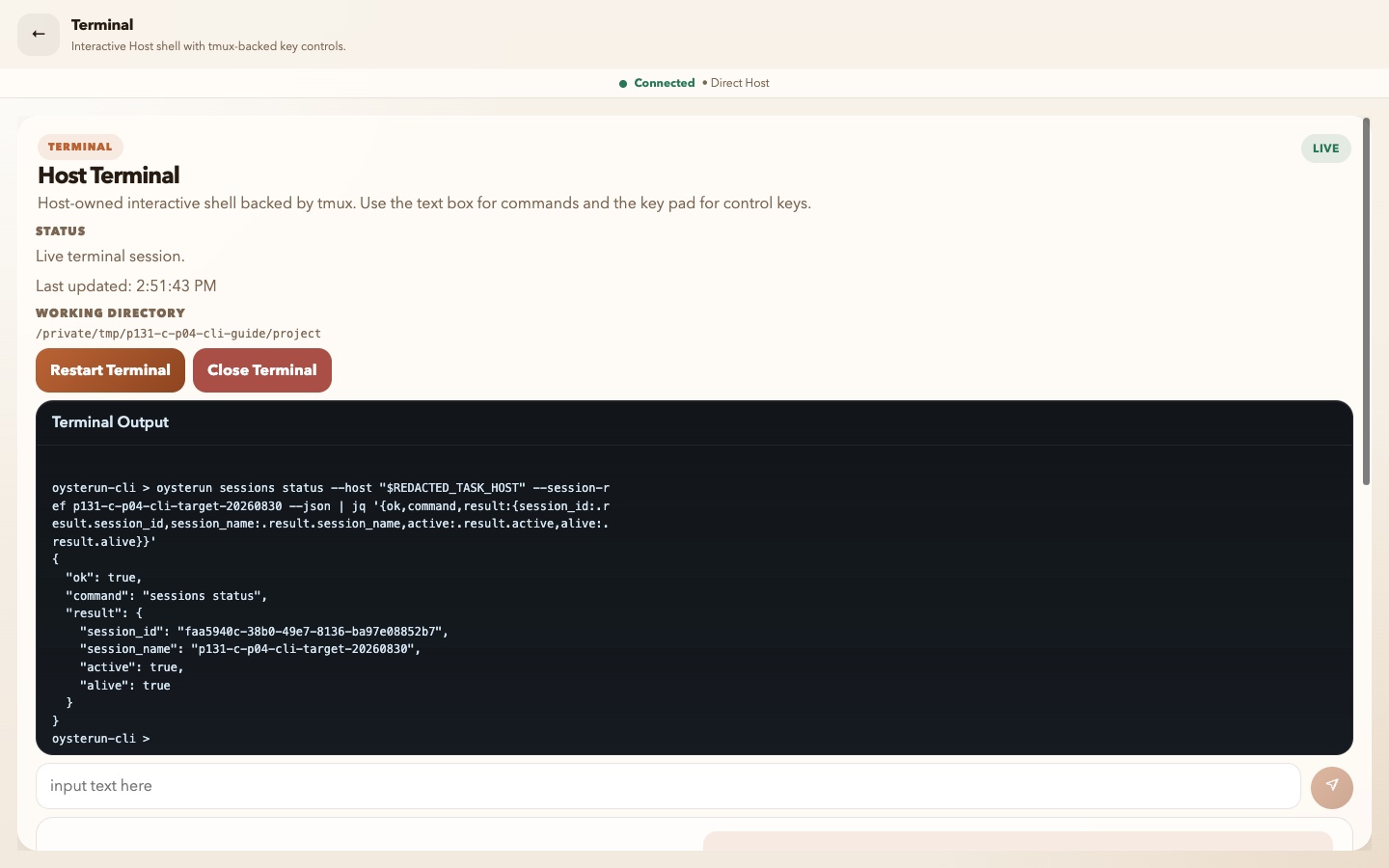
ok, sessions status, and the intended exact Session in the result envelope.Inspect full-size screenshot
When more than one Host is available, pass an explicit --host value. Start with a read:
oysterun sessions list --host <HOST_ORIGIN> --jsonIf you are using previously approved dashboard CLI access, you can check it without changing a Session:
oysterun auth status --host <HOST_ORIGIN> --json- Read the target and returned status.
- Confirm that the listed Sessions belong to the intended Host.
- Copy an exact identifier only from this trusted read result; do not guess from a display name.
3. Recognize read-only operations
These supported actions inspect current state without requesting a product mutation:
| Module | Read-only actions | Typical result |
|---|---|---|
| auth | status | Current dashboard CLI sign-in status |
| sessions | list, status, url, profile get | Session identity, state, URL, or profile |
| chat | recent, messages, messages-around, search, loop list | Bounded messages, context, search matches, or Loop definitions |
| scheduler | list, get, runs, run-log | Schedules and their recorded run information |
unread-count, list, get | Mail counts, lists, or one item | |
| notifications | status | Current notification readiness |
| website | status, url, validate, access get | Website state, URL, validation, or access mode |
| telegram | status; sessions telegram get | Telegram or per-Session Telegram state |
Add --json when you need the structured envelope. It includes ok, command, contract, result, and error.
4. Recognize mutations that do not wait for confirmation
The following action families change product state when their required inputs and authorization are accepted. They are not made safe by the absence of a confirmation prompt:
| Module | Actions that change state immediately | What can change |
|---|---|---|
| auth | login, logout | CLI sign-in state |
| sessions | start, profile update, rename, resume, branch-resume, Telegram enable/disable/update | Sessions or Session profile settings |
| chat | send; Loop create, update, enable, disable | Messages or Loop definitions/state |
| scheduler | create, update, enable, test-run | Schedules or a real test run |
send, read, unread, archive, unarchive, update | Mail delivery or item state | |
| notifications | send | Notification delivery unless its documented dry run is used |
| website | init, enable | Website files or enabled state unless the action's documented dry run is used |
5. Preview and confirm protected mutations
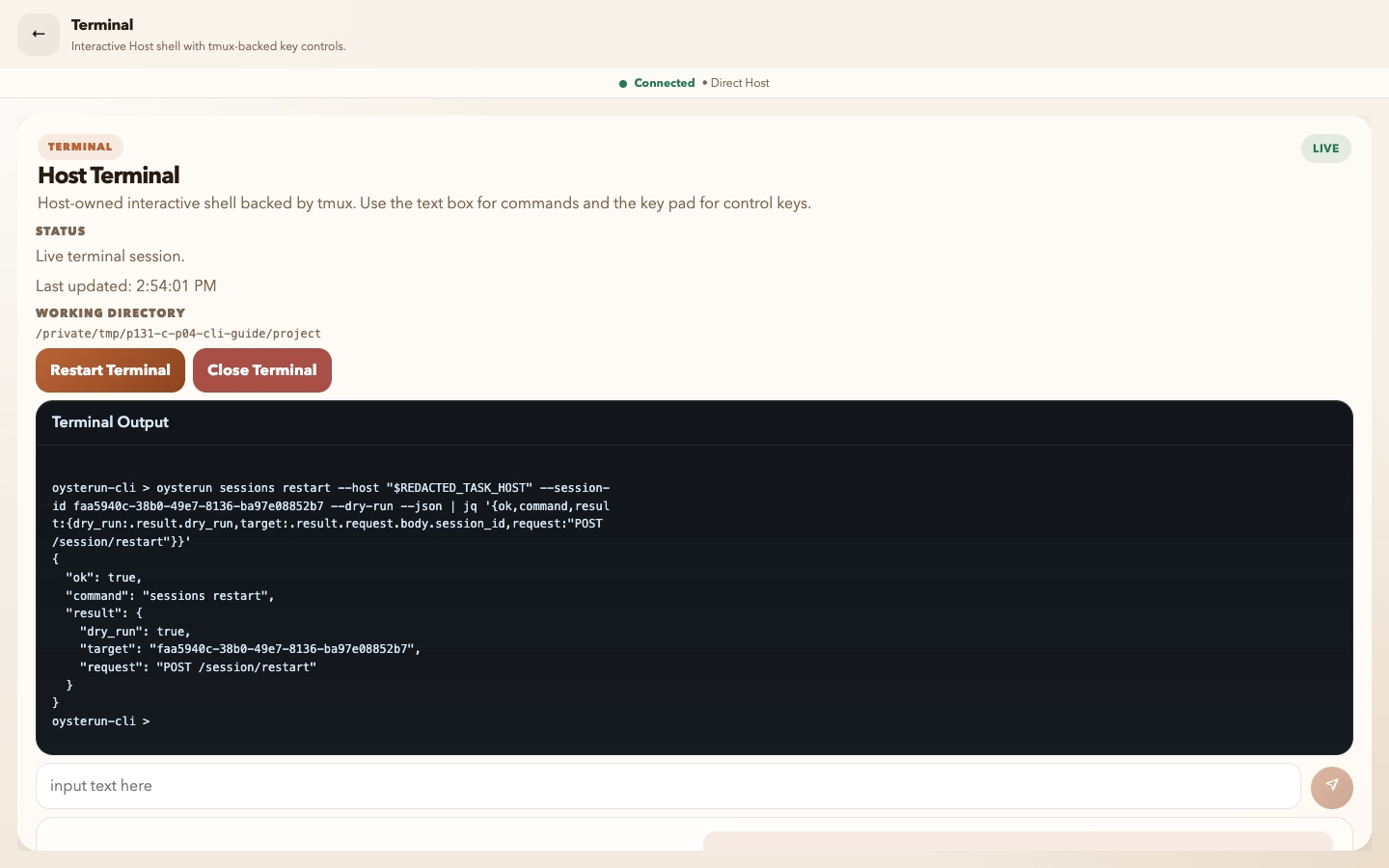
dry_run: true and POST /session/restart; no protected mutation runs.Inspect full-size screenshot
These current operations have an enforced confirmation boundary:
| Area | Protected operations | Boundary |
|---|---|---|
| Sessions | sessions stop, sessions interrupt, sessions restart | Bare --confirm or --dry-run |
| Chat | chat loop delete | Bare --confirm or --dry-run |
| Scheduler | scheduler disable, scheduler delete | Bare --confirm or --dry-run |
mail delete | Bare --confirm or --dry-run | |
| Website | website access set, website disable, website password set | Bare --confirm or --dry-run |
First preview the exact operation. Use --json so the planned request is visible instead of only a short human-readable status:
oysterun sessions restart \
  --host <HOST_ORIGIN> \
  --session-id <SESSION_ID> \
  --dry-run \
--json- Confirm that the result contains
dry_run: true. - Recheck the explicit Host in the command you typed. In the redacted plan, verify the request method and path plus the exact target identifier.
- If anything is wrong or unclear, stop. The dry run made no mutation.
- Only when the mutation is explicitly authorized, rerun the same reviewed command with the bare --confirm flag instead of --dry-run. That second command performs the mutation.
6. Read output without exposing private data
- Human-readable output is the default. Use --json when you need to verify the exact command/result envelope or a dry-run plan.
- Normal output redacts secret-like fields, but Host origins, Session identifiers, message content, and filenames can still be private.
- On success, verify
ok,command, and the expected result. On failure, readerrorbefore changing the command. - Share only the smallest redacted excerpt needed for support. Never share an auth option or your complete environment.
7. Recover without turning a read into a mutation
- Unknown command or action: stop and return to
oysterun --help. Do not try nearby action names. - Host origin is required or the wrong Host responds: stop, obtain the approved Host origin, and rerun a read with explicit --host.
- Authorization is required: use the approved sign-in path for that Host or the current live Session authority. Do not paste a broad token as a shortcut.
- The CLI requires --confirm: do not append it immediately. Run the same protected operation with --dry-run --json, review the plan, then request authorization if it is not already explicit.
- A target name is ambiguous: use a read command to obtain the exact identifier, then retry only the intended operation.
- A dry-run plan lacks
dry_run: true: do not proceed to confirmation. Preserve the redacted output and check the current command guidance; never use an undocumented dry-run as a safety test.
8. Finish with a safety check
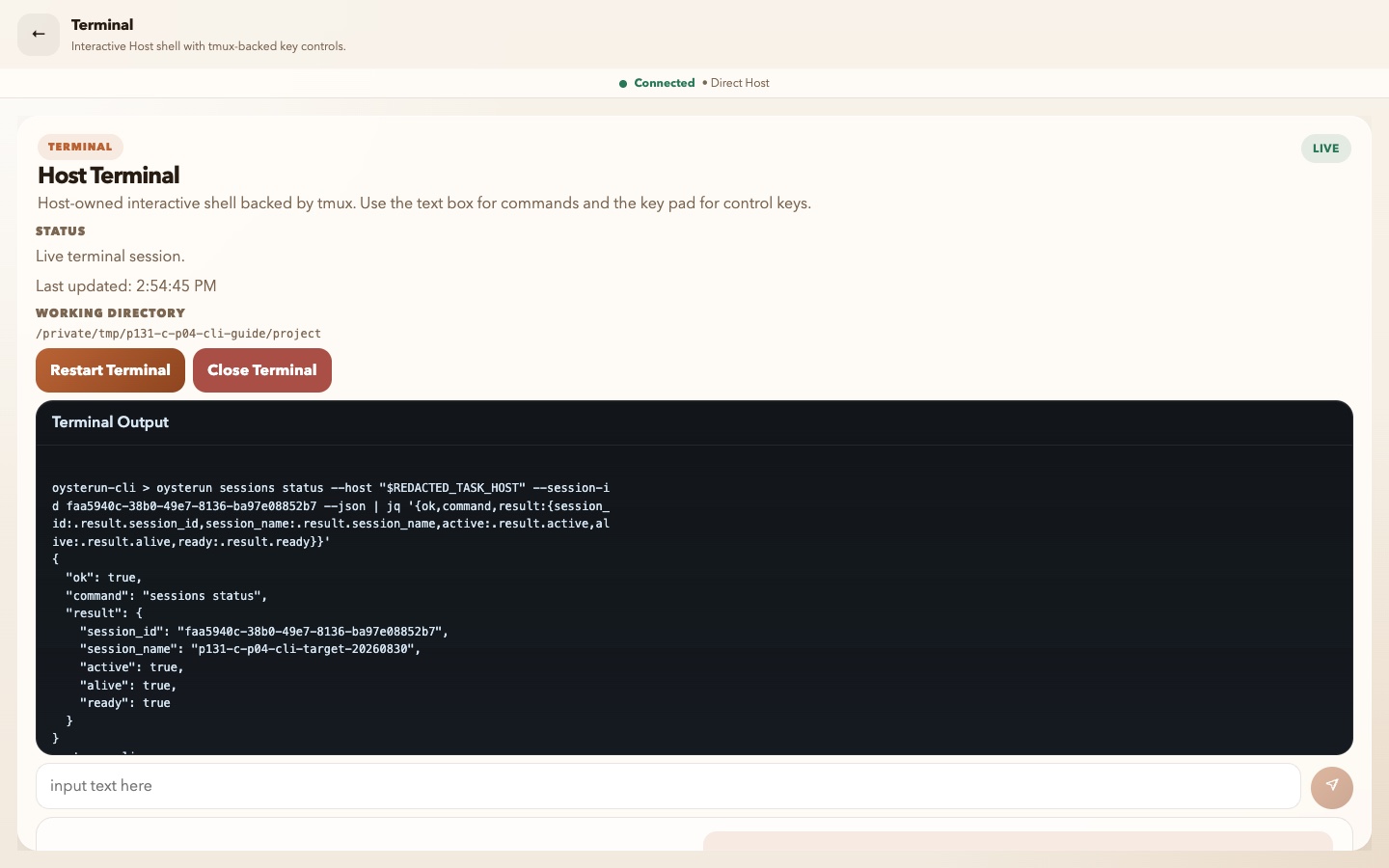
Inspect full-size screenshot
active, alive, and ready are lifecycle and readiness fields. Alone, they do not prove that the provider is responding, typing, occupied, or making useful progress.
- Confirm the Host and exact target one final time.
- Classify the command as a read, ordinary mutation, or protected mutation.
- For a protected mutation, retain the dry-run result and the authority for the confirmed action.
- After every ordinary or confirmed protected mutation, run the relevant read-only command against the same Host and exact target. After a dry run, use the post-read to verify that the planned change did not occur.