
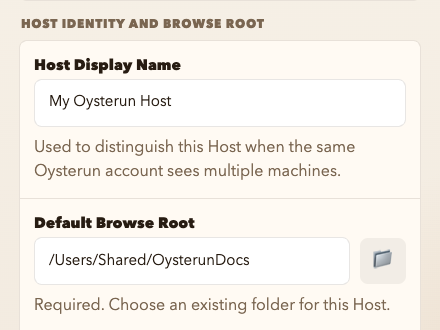
On a computer, choose Host Preferences under OYSTERUN. On a phone, open the top-left >| drawer first. Both settings are under Host Identity And Browse Root.
Change the Host name
- In Host Display Name, enter a name that helps you recognize this computer.
- Choose Save.
The new name appears after the save succeeds. It does not change the Host URL or your Sessions.
Change the default folder
Default Browse Root is the top-level folder Oysterun can browse. Your project folders go inside it.
- In Default Browse Root, enter an existing folder, or choose the folder button and select one.
- Choose Save.
The saved path becomes the starting folder for new folder choices. Existing Sessions keep their own Start Folder. If Oysterun says the folder is required or unavailable, select an existing folder and save again.