
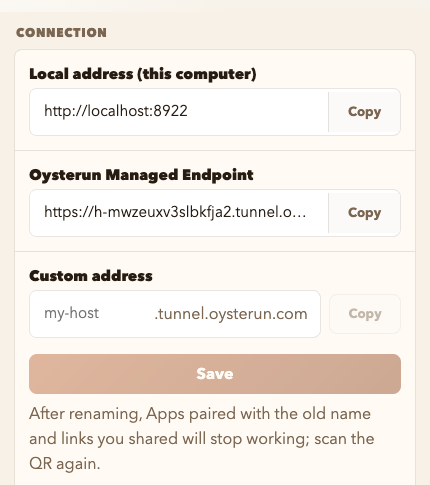
Check the connection status
- Choose Host Preferences under OYSTERUN. On a phone, open the top-left >| drawer first. Then open Connection.
- Check Managed Tunnel Status. Ready means the managed connection is available.
- Under Oysterun Managed Endpoint, choose Copy to copy the Host's own address for reaching it from outside.
Open that address in a browser. Success means Oysterun loads and shows the Host as connected. Local address (this computer) works only from the Host computer.
Understand the Custom address row
The Custom address field is visible and is reserved for choosing a shorter Managed Endpoint name. On this Oysterun service, trying to save shows Custom addresses are not available on this Oysterun service yet. Do not enter or save a name yet. This Guide will add the steps after the matching Cloud rollout.
Check connection diagnostics
Open Connection Diagnostics, then choose Refresh. The rows show the current route and connection state. If you need support, choose Copy Debug Info, inspect the text, and remove anything private before sharing it. Never share passwords, tokens, or a login QR payload.
If Managed Tunnel Status is Pending, wait and refresh. Denied or Disabled means the Managed Endpoint is not ready; include the visible status and your Oysterun version when reporting the problem.
View tunnel traffic
Choose Token Usage under OYSTERUN, then open Tunnel Traffic. This page will show the current quota month and the last 30 days after the matching Cloud rollout. Until then, it can say that tunnel traffic is not available yet; there is nothing to configure on the Host.