
After sign-in, Oysterun opens your last conversation. Before any Session exists, it shows No sessions yet instead. On a computer, the sidebar stays open. On a phone, the same sidebar is a drawer opened with the top-left >| toggle.
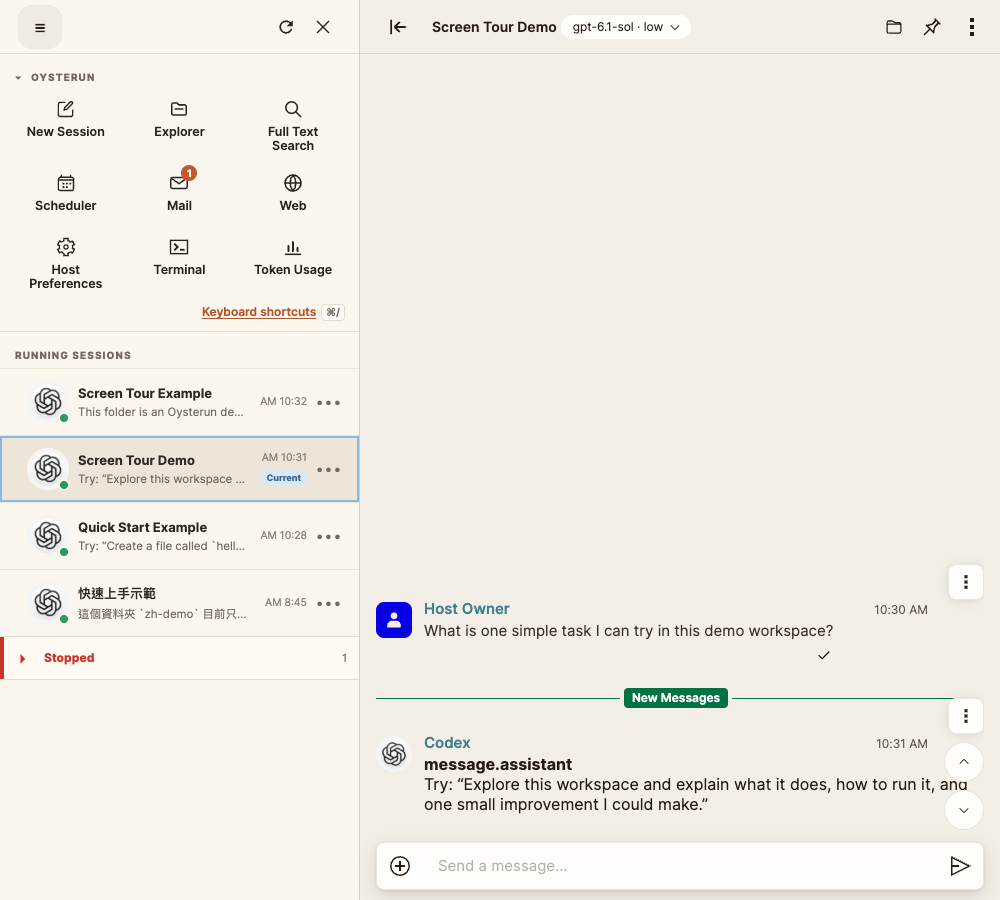
Open an Oysterun tool
Under OYSTERUN, choose the tile for the job:
- New Session starts a conversation.
- Explorer opens folders and files.
- Full Text Search searches messages.
- Scheduler opens scheduled work.
- Mail opens reports in Inbox.
- Web opens Oysterun Websites.
- Host Preferences opens Host settings.
- Terminal opens Host terminals.
- Token Usage shows AI-tool usage and Tunnel Traffic.
The selected tool opens in the main area without hiding the sidebar.
Return to a running Session
Running Sessions in the computer sidebar lists active conversations. On a phone, open the top-left >| drawer first. Select a row to return to it. For a stopped conversation, expand Stopped, open its ⋯ menu, and choose Resume Chat.
Open the drawer on a phone
Tap the top-left >| toggle. The drawer contains the same OYSTERUN tiles and Running Sessions as the computer sidebar. Choose an item; the drawer closes and the page opens.
Use keyboard shortcuts
On a Mac, press ⌘⇧P to open the command palette and search for an action such as Open New Session or Open Host Preferences. Press ⌘/ to open the complete Keyboard Shortcuts reference. On Windows or Linux, use Ctrl+Shift+P and Ctrl+/.
You can also choose Keyboard shortcuts under the OYSTERUN tiles. The reference shows only shortcuts available on the current screen.