
Your Host password protects Oysterun in browsers and the phone App. Changing it signs out existing browser and App connections, so have the new password ready before you continue.
Change the password
Open the sidebar's top ☰ account menu and choose Change Password. On a phone, open the top-left >| drawer first. On a Mac, ⌘⇧P also opens a command palette where you can choose Change Password.
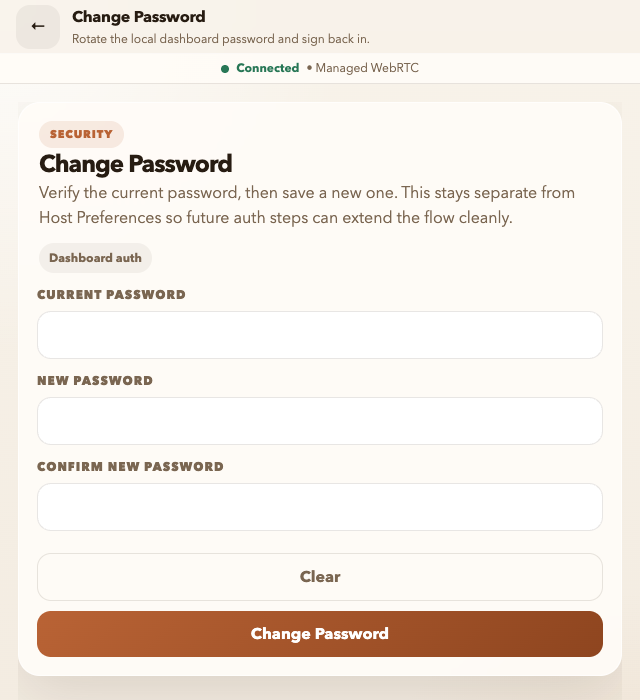
- Enter the password you use now in Current Password.
- Enter the replacement in New Password.
- Enter it again in Confirm New Password.
- Choose Change Password.
Success means the sign-in screen appears. Sign in again with the new password on each browser and App. If the form rejects the current password, confirm that you opened the intended Host and try the current password again. If the two new values differ, re-enter both.
Never share the password or include it in a screenshot, message, or diagnostic file.
Sign out
Open the sidebar's top ☰ account menu and choose Logout. On a phone, open the >| drawer first. This signs out only this browser or App; it does not stop the Host or other Sessions. The sign-in screen appears when it succeeds. Use the Host address and password to sign in again.