
Oysterun remembers the Sessions—working conversations in project folders—that were open when the Host stopped. It can reopen their provider conversations without replaying prompts or commands.
Turn automatic restore on or off
Choose Host Preferences under OYSTERUN; on a phone, open the top-left >| drawer first. Open Session Workspace Restore. Restore previous Sessions after restart is the automatic-restore switch. Save Host Preferences after changing it.
When it is on, Oysterun starts restoring after the Host returns. You can still use the sidebar and open conversations while this happens. A row marked Restoring… is still starting; wait instead of starting a duplicate Session.
Restore manually
In the same section, choose Restore previous Sessions. The button reads Restoring... while the request runs, then the line below lists each previous Session and its result.
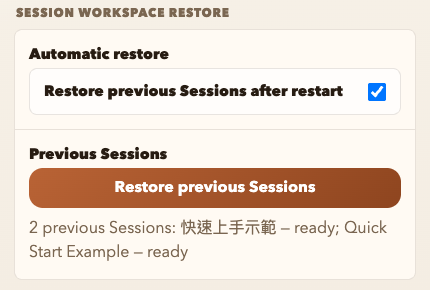
Success means the Session returns to Running Sessions with its conversation history. Work interrupted by the restart is not replayed; read the last completed reply before continuing.
If Restore failed appears
Restore failed means Oysterun could not reopen that Session. In the computer sidebar, expand Stopped and open the row; on a phone, open the top-left >| drawer first. Correct the reported problem. If its project folder is missing, put the folder back or choose New Session under OYSTERUN to open Session Setup, then choose the folder again under Start Folder. The first-Session steps show this path. If its AI tool is missing or signed out, follow Install and sign in to one Provider. Then open the failed row's ⋯ menu and choose Resume Chat. Success means the Session appears under Running Sessions. Do not create a replacement Session until you have checked the failed row, or you may split the conversation history.