
A model is the AI version an AI tool uses to answer and work. This setting applies to new Sessions; it does not change a Session that is already running.
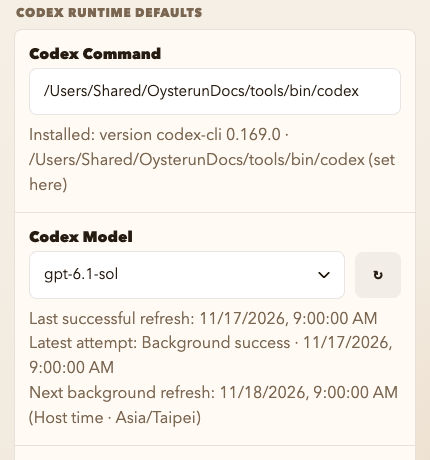
Choose a default model
- Choose Host Preferences under OYSTERUN. On a phone, open the top-left >| drawer first.
- Find the matching runtime defaults: Claude, Codex, Grok, Antigravity, or OpenCode.
- In that section's Model field, choose the model you want.
- Choose Save.
The saved model is selected when you start a new Session with that AI tool. Repeat these steps for each installed tool you use.
Refresh a missing model list
If the list is empty or a newly installed model is missing, press the ↻ button beside the Model field. Success shows a time after Last successful refresh, and the Model list becomes selectable. Choose the model, then save. For Not installed, install and sign in to the tool; for Update required, update it, then press ↻ again. Follow Install and sign in to one Provider. If refresh still fails, report the visible error and Oysterun version in Oysterun Issues, without passwords or login tokens.